Getting More Out of It! | Tài liệu Tiếng Anh
Getting More Out of It! | Tài liệu Tiếng Anh
Môn: Tiếng Anh chuyên ngành 332 tài liệu
Trường: Tài liệu Tiếng Anh chuyên ngành, Tiếng Anh cho người đi làm 432 tài liệu
Tác giả:


Preview text:
H A N D S - O N L A B S M A N U A L - 2 0 2 4 HOL-2501-11-VCF-L Getting More Out of It!
HOL-2501-11-VCF-L: Getting More Out of It! Table of contents
Lab Overview - HOL-2501-11-VCF-L - VCF Automation Orchestrator - Getting More Out of It! 4
Lab Guidance ...................................................................................4
Lab Description.................................................................................5
Module 1 - Aria Automation Orchestrator Overview (15 minutes) Basic 6
Introduction..................................................................................... 6
Log in to Aria Automation Orchestrator ............................................. 6
Introduction to the Aria Automation Orchestrator Client ..................... 9
Running our first workflow ............................................................... 15
Log Out of Aria Automation Orchestrator ......................................... 27
Conclusion......................................................................................28
Module 2 - Create a Basic Orchestrator Workflow (30 min) Basic 30
Introduction................................................................................... 30
Log in to Aria Automation Orchestrator ........................................... 30
Create a custom workflow ...............................................................33
Understand a Workflow Token......................................................... 51
Log Out of Aria Automation Orchestrator .........................................54
Conclusion......................................................................................55
Module 3 -Understand Parameters, Attributes and Scripting Objects (30 minutes) Basic 57
Introduction.................................................................................... 57
Log in to Aria Automation Orchestrator ............................................ 57
Understanding Input and Output Parameters.................................... 61
Understanding Workflow Variables ..................................................64
Using Scripting Objects ................................................................... 81
Managing Actions ...........................................................................95
Log Out of Aria Automation Orchestrator ........................................152
Conclusion.....................................................................................153
Module 4 - Leverage Existing Scripts in Powershell and Python (45 min) Advanced 155
Introduction...................................................................................155
Log in to Aria Automation Orchestrator ........................................... 157
Create a simple PowerCLI script ..................................................... 161
H A N D S - O N L A B S M A N U A L | 2
HOL-2501-11-VCF-L: Getting More Out of It!
Leverage Python to integrate with NSX ...........................................176
Log Out of Aria Automation Orchestrator ........................................ 217
Conclusion.....................................................................................218
Module 5 - Integrate Aria Orchestrator and Aria Operations (45 minutes) Intermediate 220
Introduction..................................................................................220
Log in to Aria Automation..............................................................220
Deploy a virtual machine ............................................................... 223
Review Aria Orchestrator Workflow ............................................... 232
Configure Aria Operations for Orchestrator Management Pack ........ 236
Configure Aria Operations Monitoring Policy .................................. 247
Trigger High CPU Alarm ................................................................. 271
Log Out of Aria Automation Orchestrator ....................................... 276
Conclusion.................................................................................... 277
Module 6 - Enhance Lifecycle Management using Extensibility in Aria Automation (30 minutes) Intermediate 279
Introduction.................................................................................. 279
Log in to Aria Automation as holadmin ........................................... 279
Custom Day 2 Action utilizing an Aria Automation Orchestrator
Workflow...................................................................................... 283
Log Out of Aria Automation Orchestrator .......................................305
Conclusion................................................................................... 306 Appendix 308
Hands-on Labs Interface (Windows Main Console)......................... 308
Hands-on Labs Interface (Ubuntu Main Console) .............................312
H A N D S - O N L A B S M A N U A L | 3
HOL-2501-11-VCF-L: Getting More Out of It!
Lab Overview - HOL-2501-11-VCF-L - VCF Automation Orchestrator - Getting More Out of It! [2] Lab Guidance
Welcome! This lab is available for you to repeat as many times as you want. To start somewhere other than the beginning, use the Table
of Contents in the upper right-hand corner of the Lab Manual or click on one of the modules below.
•Module 1 - Aria Automation Orchestrator Overview (15 minutes) (Basic) Get an overview of the Aria Automation Orchestrator
client and how to run your first workflow.
•Module 2 - Create a Basic Orchestrator Workflow (30 minutes) (Basic) Build your knowledge of Aria Automation Orchestrator
and create your first workflow to perform a simple operation within vCenter.
•Module 3 - Understand Parameters, Attributes and Scripting Objects (30 minutes) (Basic) Take a deeper look at the key
components used by Aria Automation Orchestrator as part of workflows and actions. See how we can manipulate data and
include custom code within workflows.
•Module 4 - Leverage Existing Scripts in PowerShell and Python (45 minutes) (Advanced) Aria Automation Orchestrator
supports multiple scripting languages. In this module we will look at how we can bring existing scripts in PowerShell and
Python into workflows to reuse the code.
•Module 5 - Integrate Aria Orchestrator and Aria Operations (45 minutes) (Intermediate) Use the power of Aria Automation
Orchestrator to automatically remediate a virtual machine in response to an alert generated in Aria Operations.
•Module 6 - Enhance Lifecycle Management using Extensibility in Aria Automation (30 minutes) (Intermediate) Extend the
lifecycle of a virtual machine by creating custom day 2 actions in Aria Automation using Aria Automation Orchestrator workflows. Lab Captains:
•Module 1 - Katherine Skilling, Senior Architect, United Kingdom
•Module 2 - Katherine Skilling, Senior Architect, United Kingdom
•Module 3 - Katherine Skilling, Senior Architect, United Kingdom
•Module 4 - Katherine Skilling, Senior Architect, United Kingdom
•Module 5 - Scott Bowe, Solutions Architect, USA
•Module 6 - Fred Hofer, Staff Technical Adoption Manager, Austria
H A N D S - O N L A B S M A N U A L | 4
HOL-2501-11-VCF-L: Getting More Out of It! [3] You are ready....is your lab?
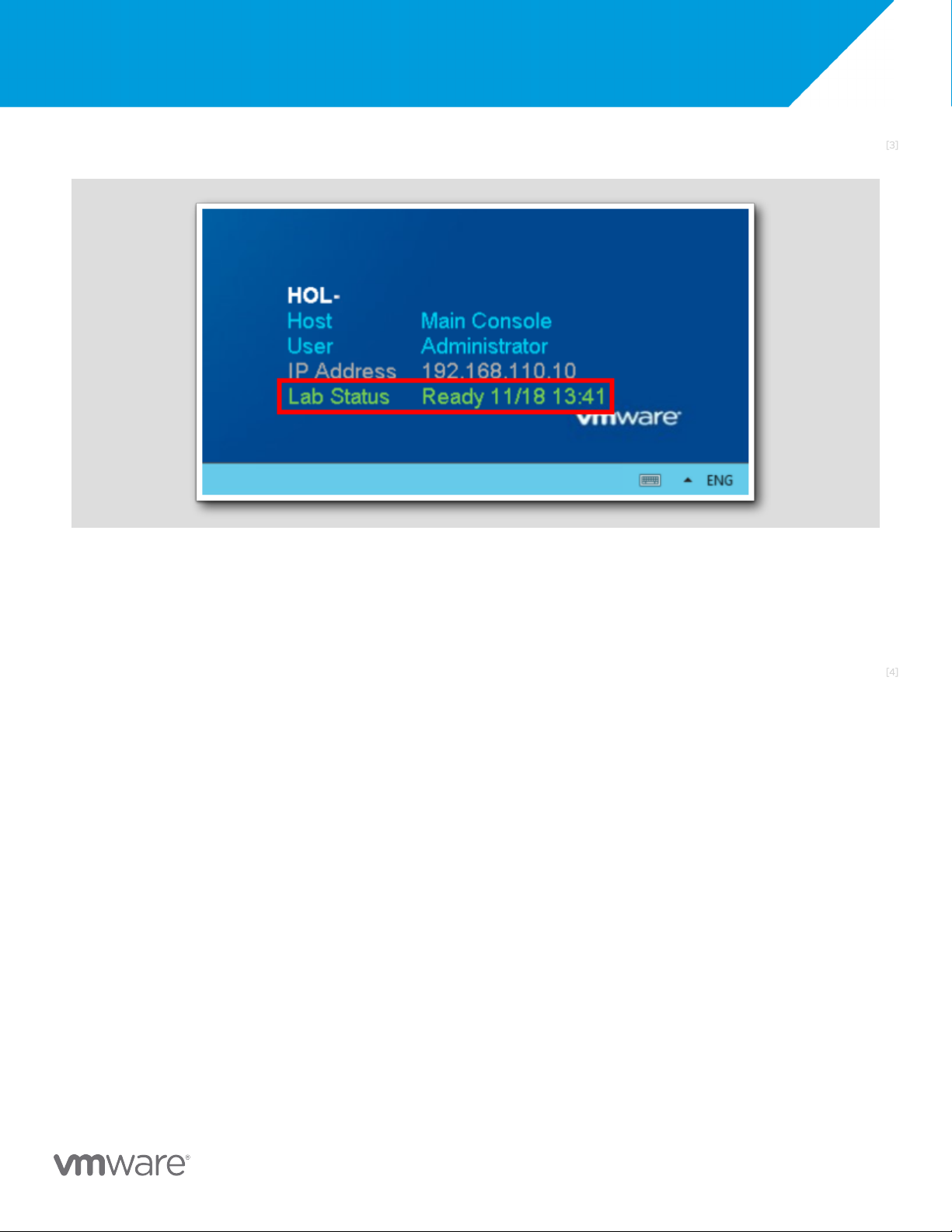
The lab console will indicate when your lab has finished all the startup routines and is ready for you to start. If you see anything other
than "Ready", please wait for the status to update. If after 5 minutes your lab has not changed to "Ready", please ask for assistance. [4] Lab Description
Run and create workflows to simplify IT tasks. Understand the parameters, attributes, and scripting objects that are used to extend the
functionality of workflows and leverage existing scripts.
H A N D S - O N L A B S M A N U A L | 5
HOL-2501-11-VCF-L: Getting More Out of It!
Module 1 - Aria Automation Orchestrator Overview (15 minutes) Basic [6] Introduction
In this module, the Aria Automation Orchestrator client interface will be explained. As part of the walkthrough, a workflow will be
executed to perform a basic operation on vSphere. Lab Captain(s):
•Katherine Skilling, Senior Architect, United Kingdom [7]
Log in to Aria Automation Orchestrator
In the following few pages, we will log in to Aria Automation Orchestrator. [8]
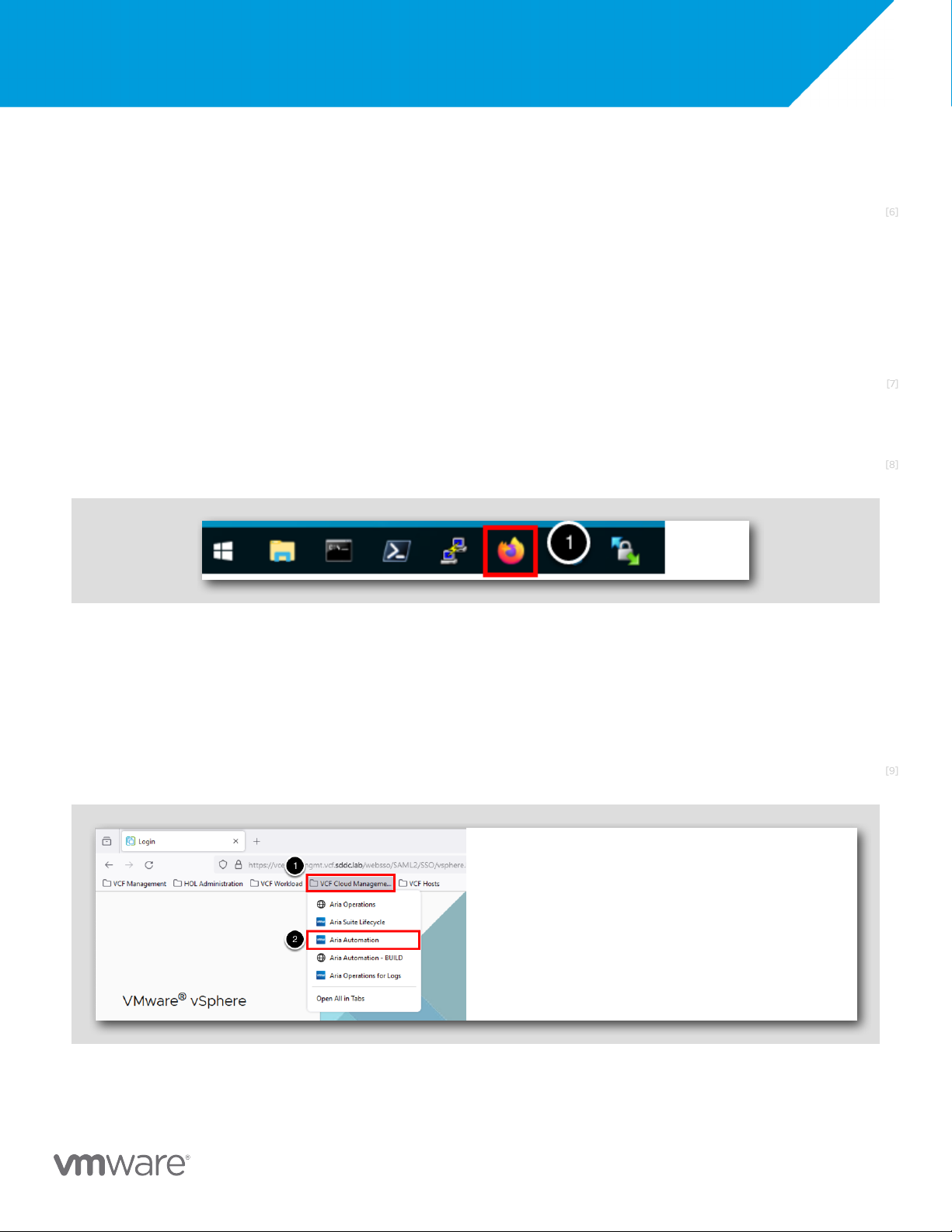
Open the Firefox Browser from Windows Quick Launch Task Bar
If the browser is not already open, launch Firefox.
1. Click the Firefox icon on the Windows Quick Launch Task Bar. [9] Log in to Aria Automation
H A N D S - O N L A B S M A N U A L | 6
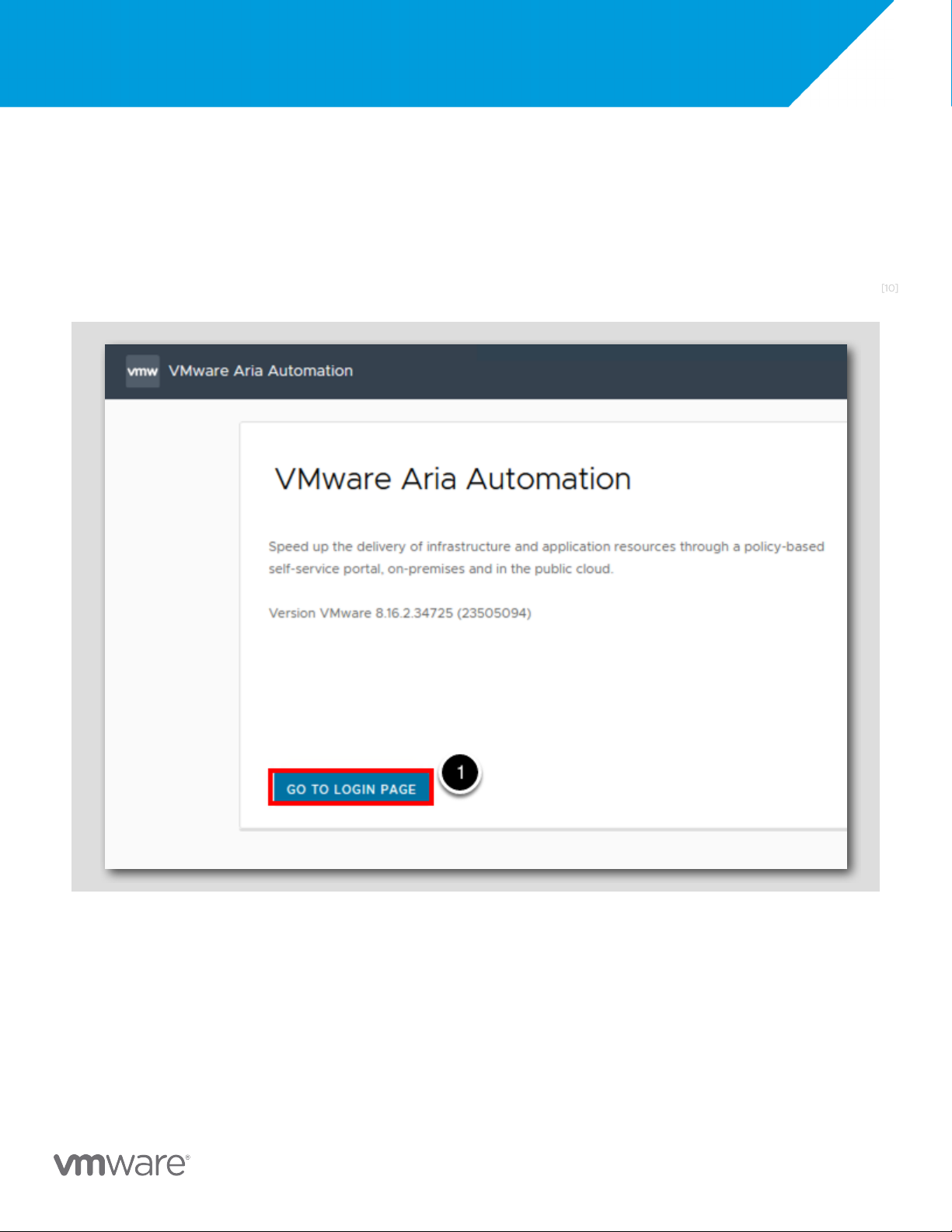
HOL-2501-11-VCF-L: Getting More Out of It! Once Firefox has loaded:
1. Click the VCF Cloud Management bookmark folder 2.Click Aria Automation. [10]
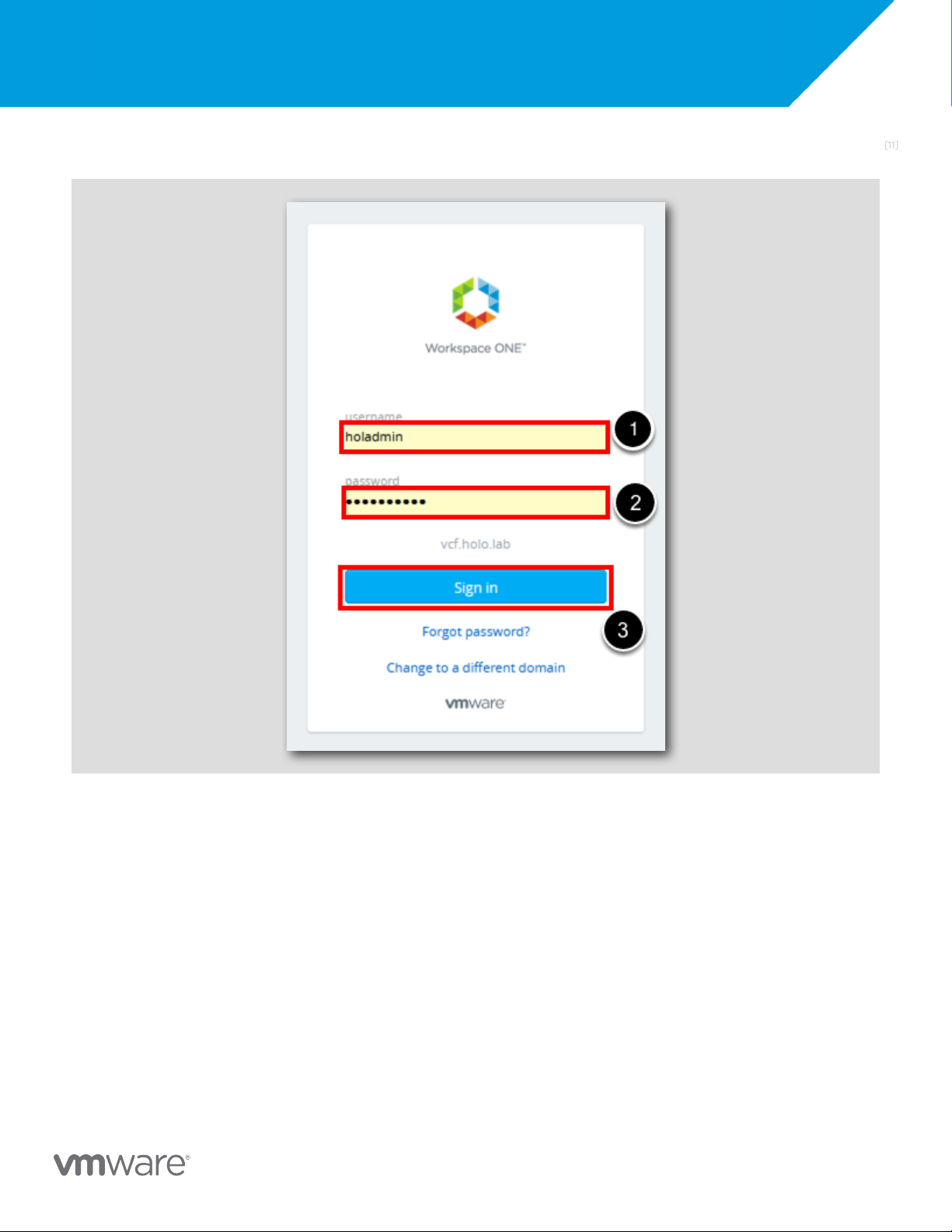
Redirect to Workspace ONE Access for Sign-On
Aria Automation is integrated with Workspace ONE Access (aka VMware Identity Manager) and we need to redirect to the Workspace
ONE Access login page to complete our log in progress.
1. At the VMware Aria Automation page, lick GO TO LOGIN PAGE.
H A N D S - O N L A B S M A N U A L | 7
HOL-2501-11-VCF-L: Getting More Out of It! [11] Workspace ONE Access Login
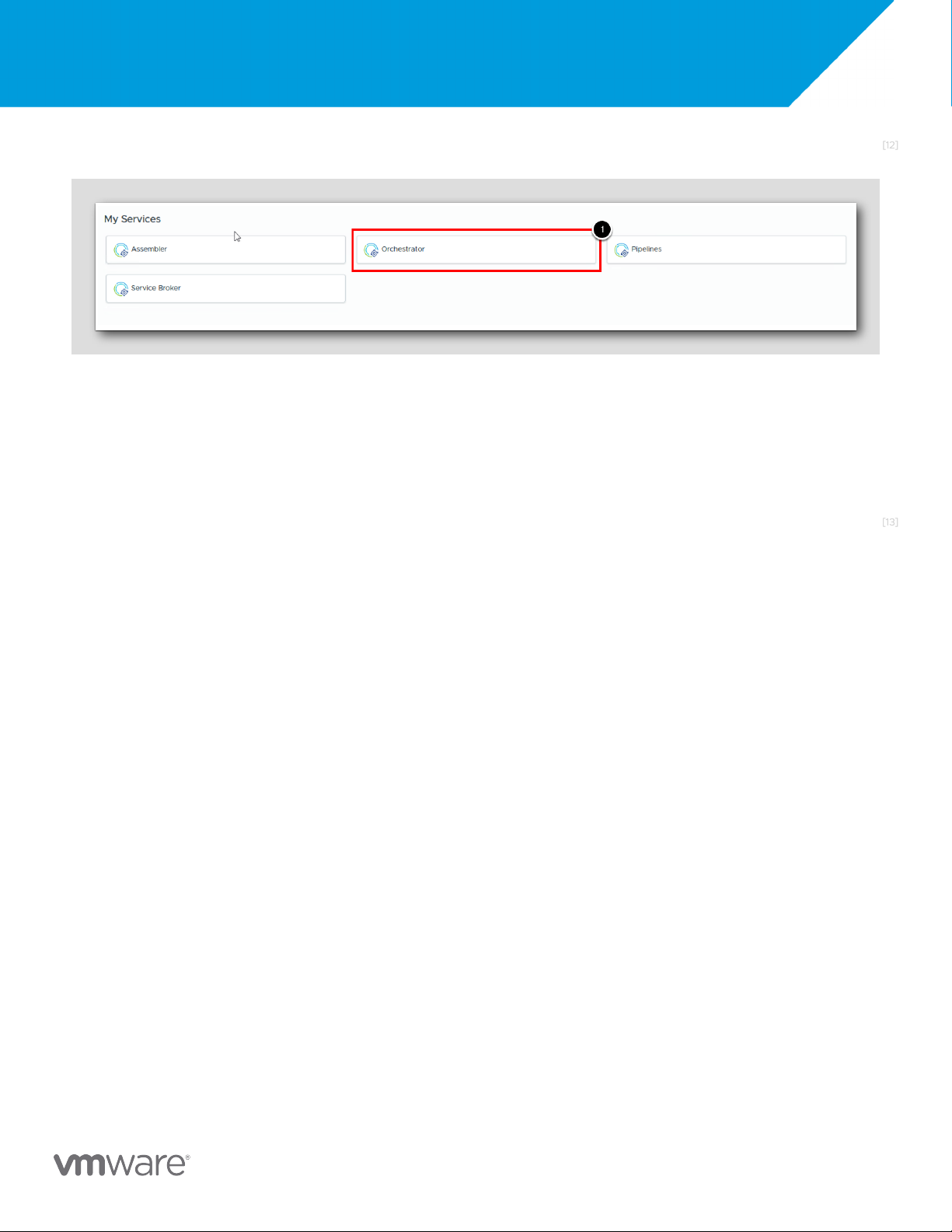
Note: The credentials for holadmin should already be cached in the browser window.
At the Workspace ONE Access prompt, type in the following user and password information.
1. At the username field, type holadmin.
2.At the password field, type VMware123!. 3.Click Sign in.
H A N D S - O N L A B S M A N U A L | 8
HOL-2501-11-VCF-L: Getting More Out of It! [12]
Launch the Orchestrator Service
From within the Cloud Services Console, under My Services:
1. Click the Orchestrator service. [13]
Introduction to the Aria Automation Orchestrator Client
The Aria Automation Orchestrator Client is the main interface to develop, see and run workflows. In this exercise, we will familiarize
ourselves with the key features of the Aria Automation Orchestrator Client user interface.
H A N D S - O N L A B S M A N U A L | 9
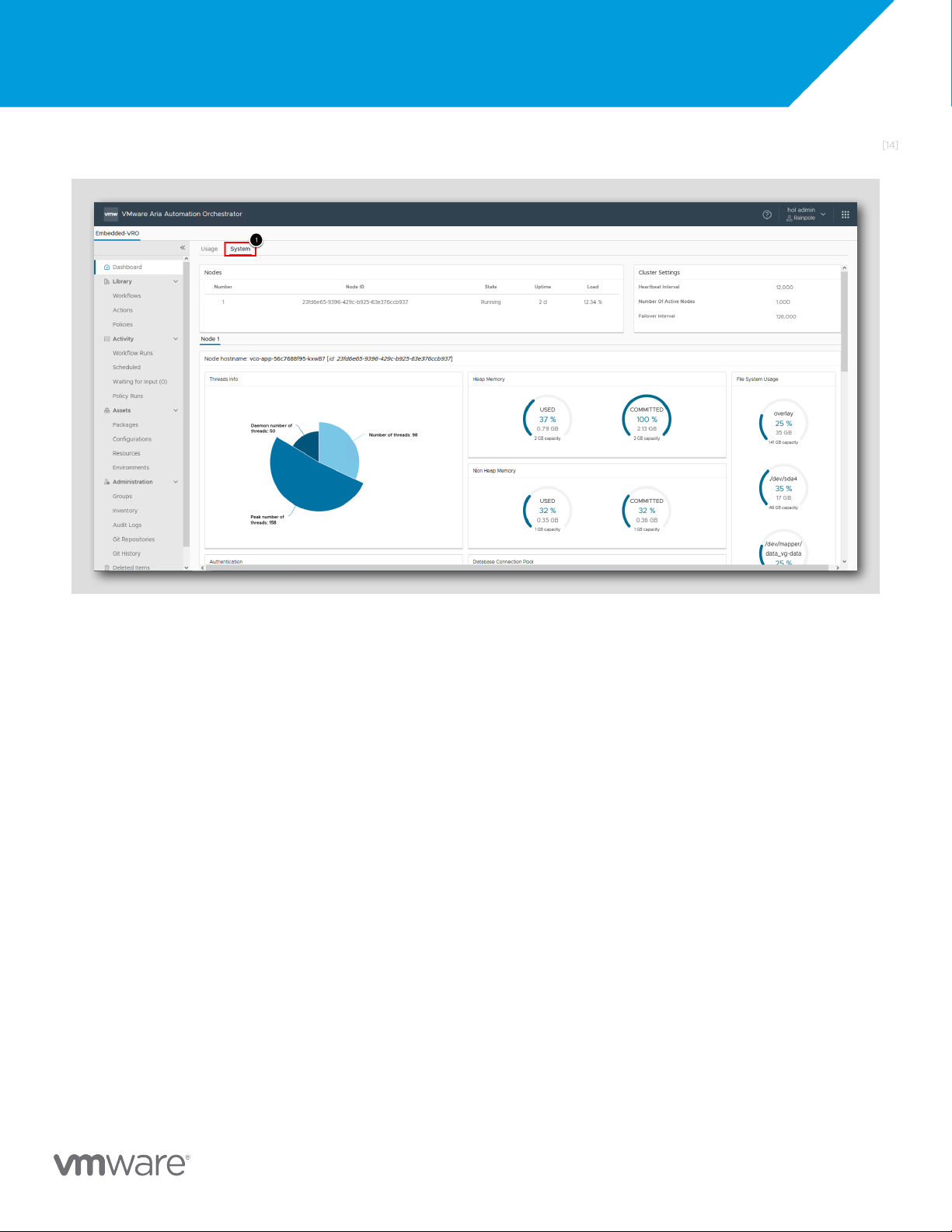
HOL-2501-11-VCF-L: Getting More Out of It! [14] Dashboard view - System
1. Click the SYSTEM tab at the top
This view gives the current resource utilization of the orchestrator instance. This is useful to get an idea of how the system may be
performing, and whether there are any resource constraints.
H A N D S - O N L A B S M A N U A L | 1 0
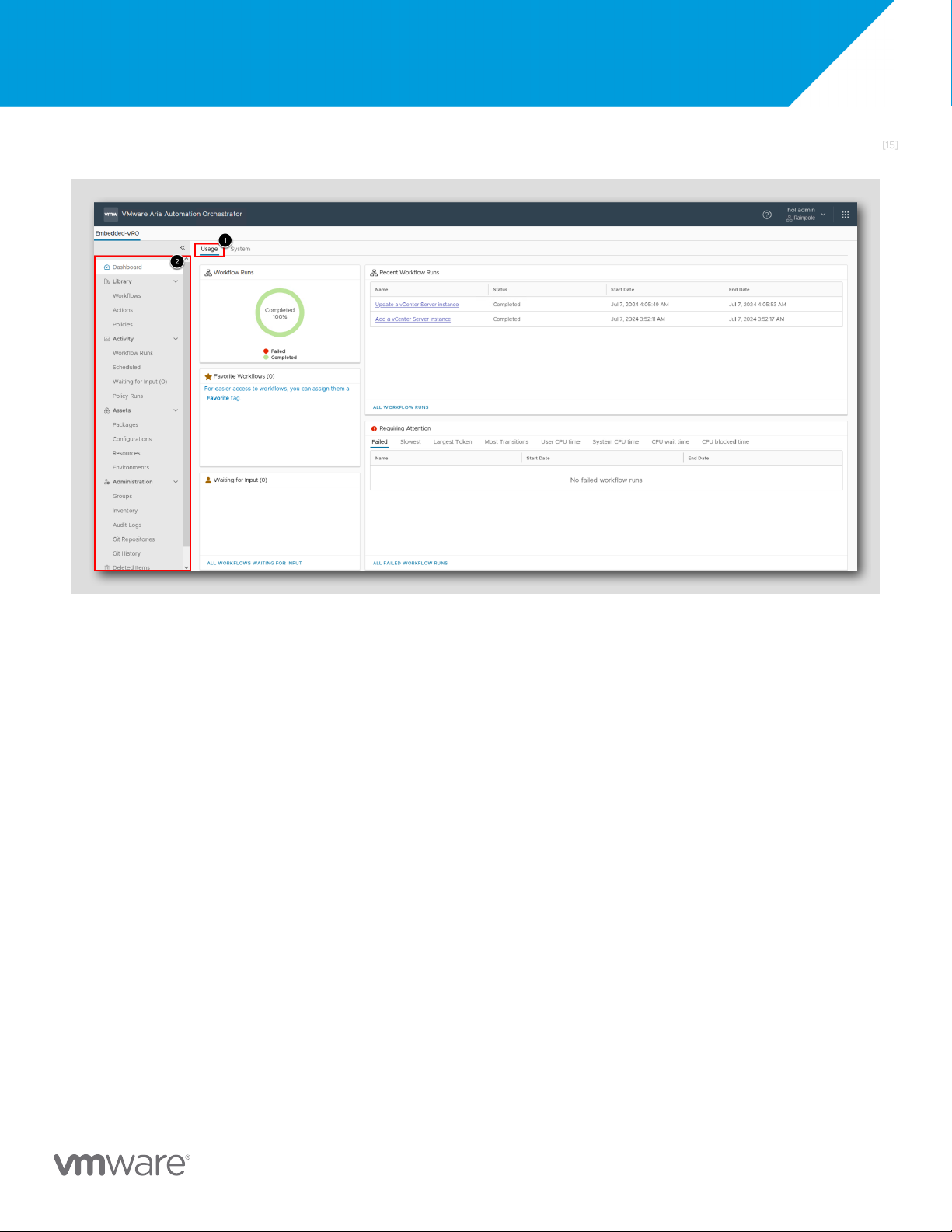
HOL-2501-11-VCF-L: Getting More Out of It! [15] Dashboard view - Usage
1. Click the USAGE tab at the top
This page gives an overview of the usage of the Orchestrator instance. We can see how which workflows have recently been run with
their final exit status and any that are currently awaiting user input before they can continue. The Requiring Attention section allows you
to review any workflows that have recently failed, are taking a long time to complete, or have the most transition states. These statuses
could be an indication that the workflow should be reviewed for errors, or restructured to improve its performance.
It is also possible to jump to a specific workflow that has been previously assigned as favorite.
2.On the left, the menu allows us to navigate between the different Aria Orchestrator features and concepts. The next sections
will describe each of these items one by one.
H A N D S - O N L A B S M A N U A L | 1 1
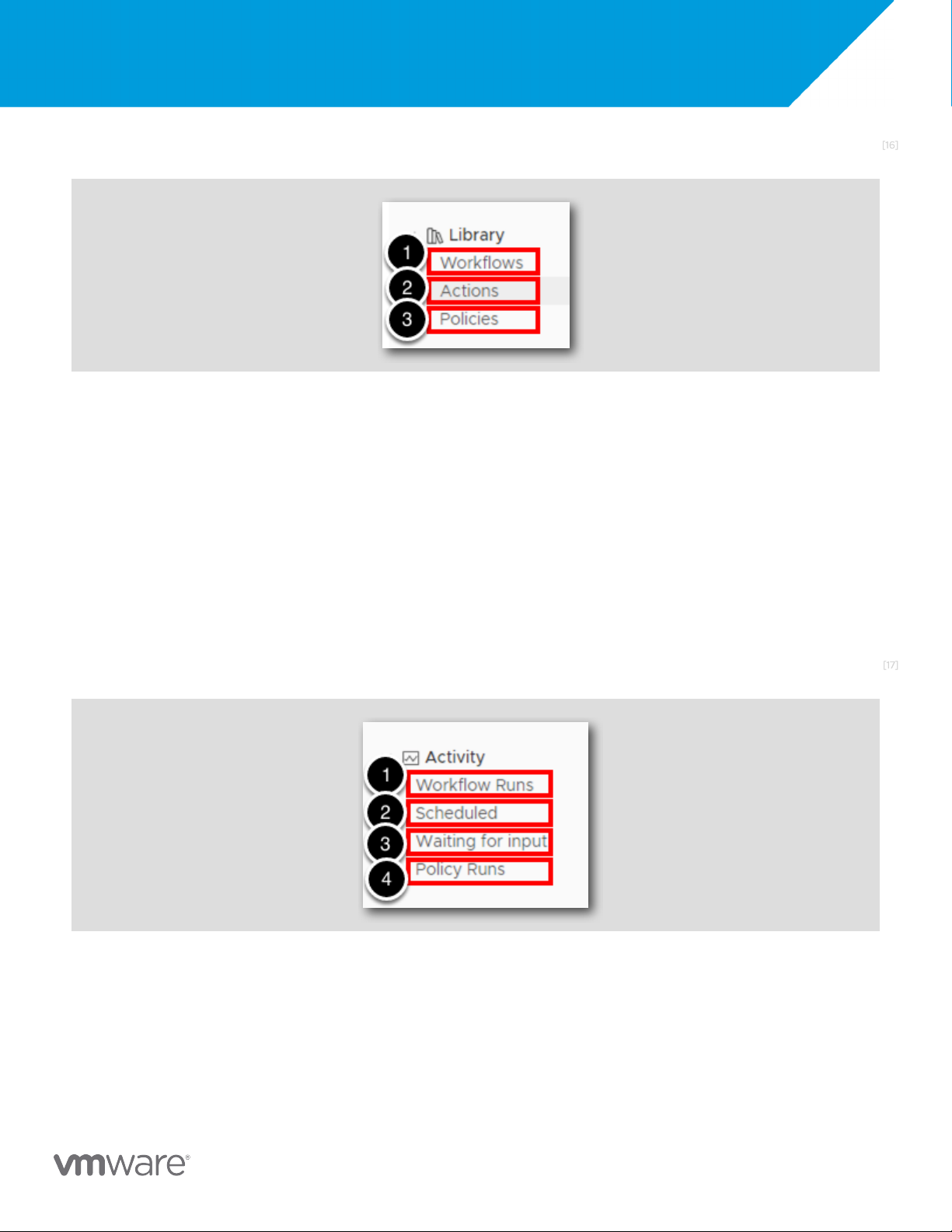
HOL-2501-11-VCF-L: Getting More Out of It! [16] Library
1. Workflows - Provides access to the Orchestrator workflow library. We can use the Workflows view to view information about
each workflow. We can also use this view to create, edit, run and interact with workflows.
2.Actions - Provides access to the libraries of predefined actions. We can use the Actions view to duplicate actions, export them
to a file, or move them to a different module in the actions hierarchical list.
3.Policies - Displays existing policies. We can use the Policies view to create and apply policies. Policies in Aria Orchestrator are
a series of rules, gauges, thresholds, and event filters that run certain workflows or scripts when specific predefined events
occur either in Orchestrator or in the platforms that Orchestrator can access through plug-ins. [17] Activity
H A N D S - O N L A B S M A N U A L | 1 2
HOL-2501-11-VCF-L: Getting More Out of It!
1. Workflow Runs - Also known as "workflow token", this is the list of all the instances of a workflow that has been executed.
Each workflow run is independent from each other, has its own logs, can be re-run and can run concurrently with others.
2.Scheduled - Displays a list of all scheduled workflows. The workflows are sorted by name or date, together with their status.
3.Waiting for input - Displays the list of workflows waiting for required user input in order to finish executing. During execution,
some workflows may require additional input from the user (i.e. approval). If this happens, the workflow will be paused while
waiting for the information. To make them more easily identifiable amongst all the running workflows, they can be found in this section.
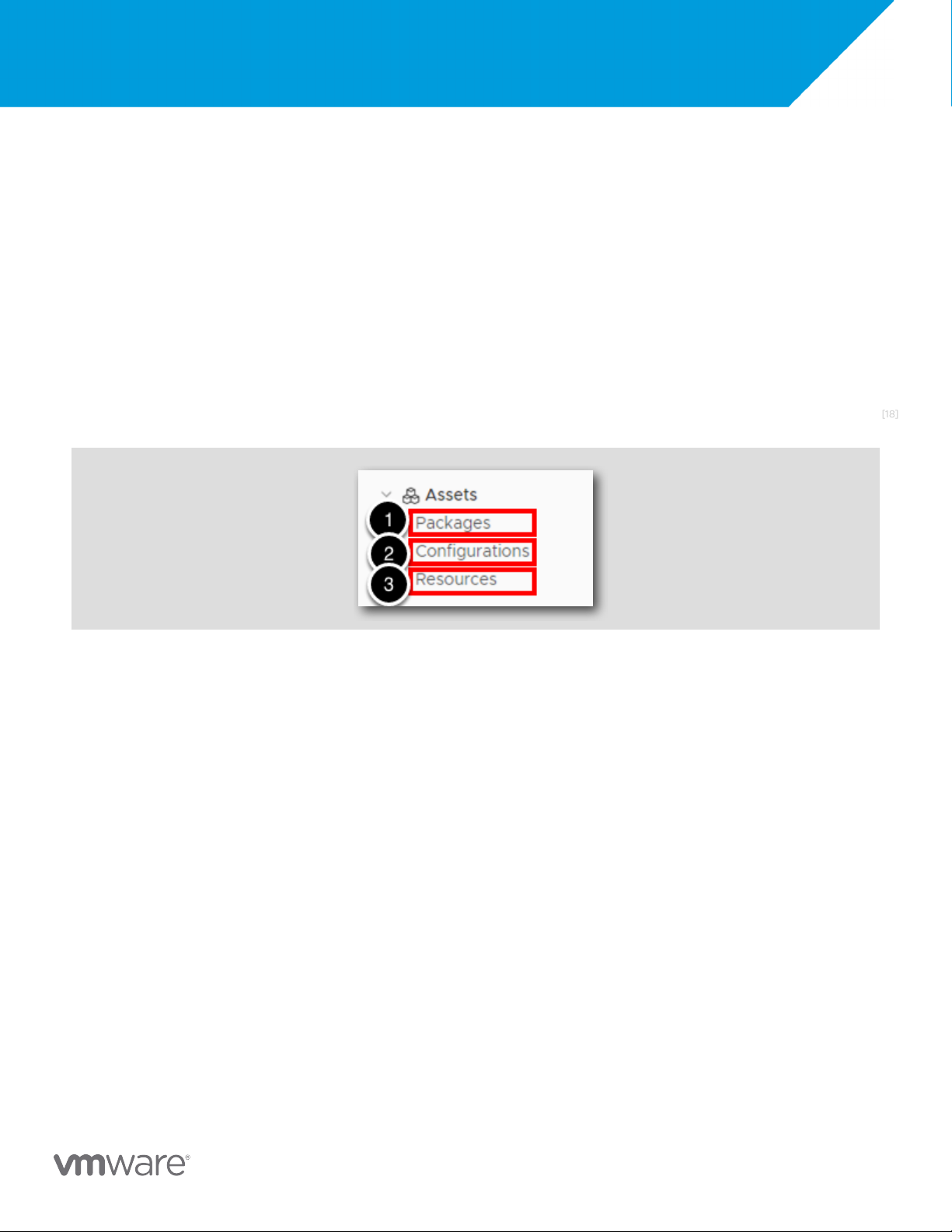
4.Policy Runs - Displays all the policies currently running and actively waiting for an event. [18] Assets
1. Packages - Displays a list of the available packages and where a selected package is used. We can use the Packages view to
add, import, export, and synchronize packages which can consist of workflows, actions and other Orchestrator assets.
2.Configurations - Provides access to the available configuration elements. We can use the Configurations view to create
configuration elements to define common attributes across an Orchestrator server. Configuration elements can be used as a
reference table of values we want to use within workflows. A single configuration element can hold multiple different
attributes and associated values. An example of where a configuration element can be useful is when making REST calls to a
remote endpoint within a workflow. We can use a configuration element to store the url, username, password or token and
any additional parameters we will need to use for each REST call. We can define these values once and then reference them
as many times as needed across different workflows.
3.Resources - Provides access to the list of resource elements. We can use the Resources view to import external objects such
as images, sysprep files, HTML templates, XML templates, and custom scripts. In turn, we can then use these as resource elements within workflows.
H A N D S - O N L A B S M A N U A L | 1 3
HOL-2501-11-VCF-L: Getting More Out of It! [19] Administration
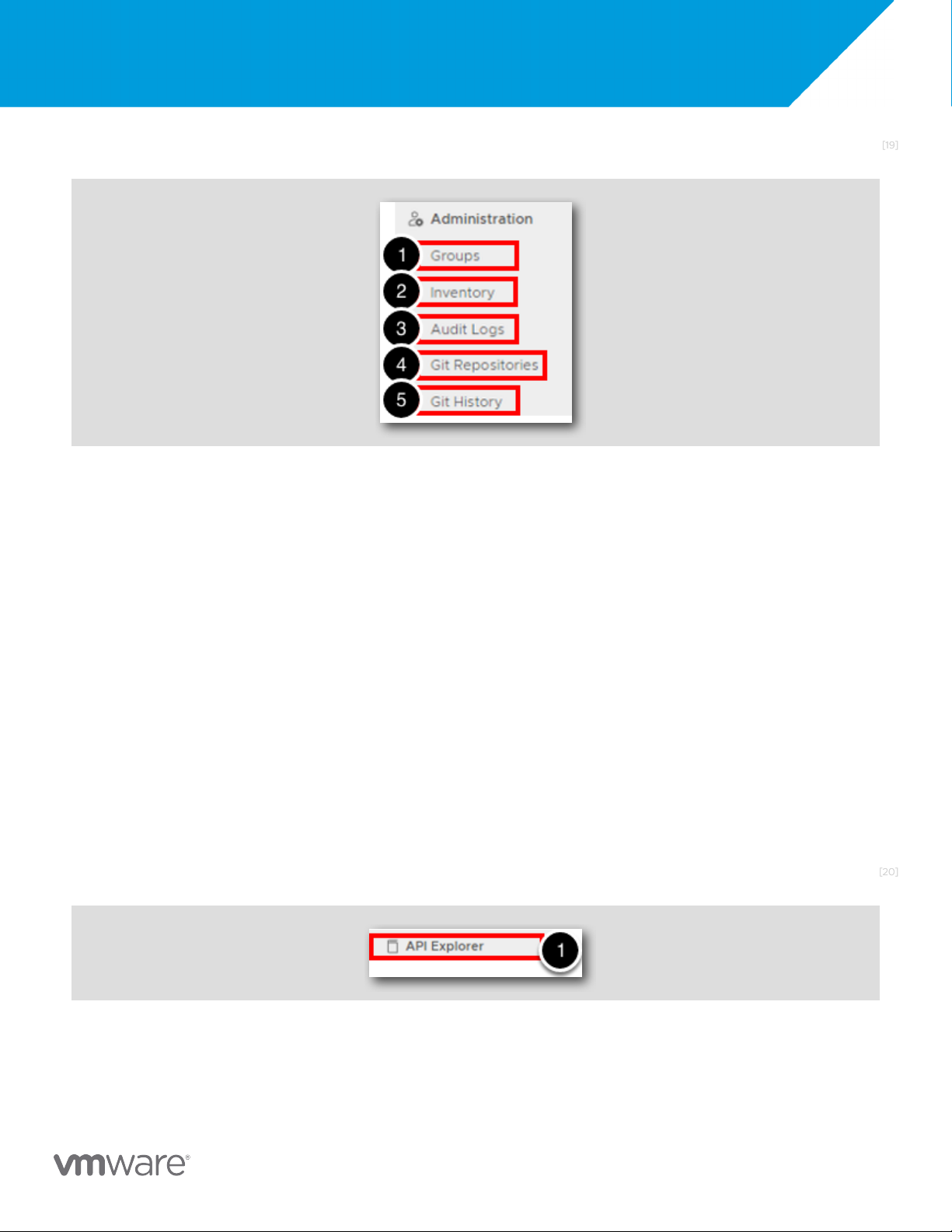
1. Groups - Allow to create groups of users and assign them to specific elements (like workflows, actions). We can use Groups to
create a basic Role Based Access Control (RBAC) configuration to restrict workflow visibility and usage.
2.Inventory - Displays the objects of the plug-ins that are enabled in Orchestrator. Within each of the plug-in sections we can
see any configured instances. For example under the vCenter plug-in we can see each vCenter instance we have added to
our inventory and any objects supported by the plugin within the vCenter inventory such as Virtual Machines.
3.Audit logs - Displays an aggregated view of all the workflow events (started, completed, failed, and saved), it also includes
output values of workflows. We can use these to track down activity and monitor what's happening in Aria Automation Orchestrator.
4.Git Repositories - Allows us to integrate with a git repository for the versionning of the workflows. Once configured we can
perform Git Push and Git Pull operations within Orchestrator to sync our content with the repository.
5.Git History - Displays a history of the git interactions in terms of the operations performed over time, and allows us to visualize the history of git activity. [20] API Explorer
H A N D S - O N L A B S M A N U A L | 1 4
HOL-2501-11-VCF-L: Getting More Out of It!
1. API Explorer - Shows the documentation for all of the javascript classes available out-of-the-box in Orchestrator. We can use
this documentation to help us understand the interactions (methods) we can perform on an object, and the properties each of the object is assigned. [21] Running our first workflow
Now that we have a basic understanding of the key features of the Aria Automation Orchestrator Client, let's use the client to run our
first workflow. In this lesson we will use the client to filter the available workflows to locate the workflow we want to run, provide the
workflows input values needed at run time and then review the outcome of the workflow run.
We will use a workflow that is provided out of the box with Orchestrator, which will create a snapshot on a Virtual Machine. The
workflow will perform the same steps that we as an administrator can perform using the vCenter interface. In later lessons we will look
at creating new workflows and editing the code within them, for now we will keep it simple and reuse a workflow without making any changes. [22] Search for a Workflow
H A N D S - O N L A B S M A N U A L | 1 5
HOL-2501-11-VCF-L: Getting More Out of It!
In the 8.16 release of Aria Automation Orchestrator there are over 600 workflows provided with the default installation. While this
makes it a very powerful tool, it can also make it difficult to locate the workflows we may need. Let's start by filtering the workflows to
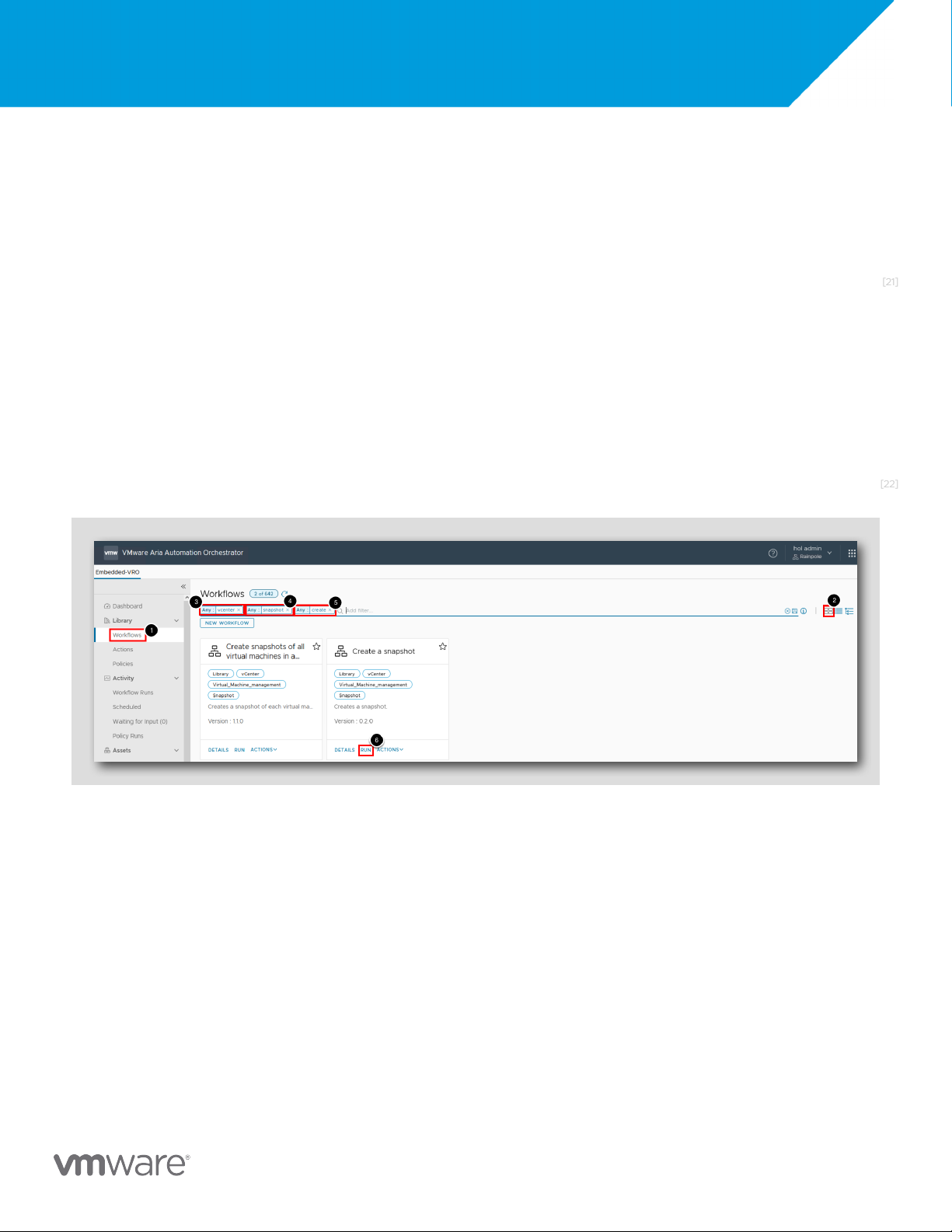
find the Create a snapshot workflow instance. 1. Click the Workflows tab
2.Make sure the card view is selected, this displays each workflow in its own card in a flat structure within the interface. We will
use some of the other view options in later lessons.
3.In the search box, enter vcenter and press return. This filters the workflows to any that contain the word vcenter (case
insensitive) within their name or tag values.
4.We still have a large number of workflows in the results, let's refine them further by adding more search criteria. Enter
snapshot in the search bar and press return.
5.Enter create and press return
6.Now we have located the workflow we want to use let's start running it. For the workflow Create a snapshot, click the RUN button. [23]
Select the VM to use as an input
H A N D S - O N L A B S M A N U A L | 1 6
HOL-2501-11-VCF-L: Getting More Out of It!
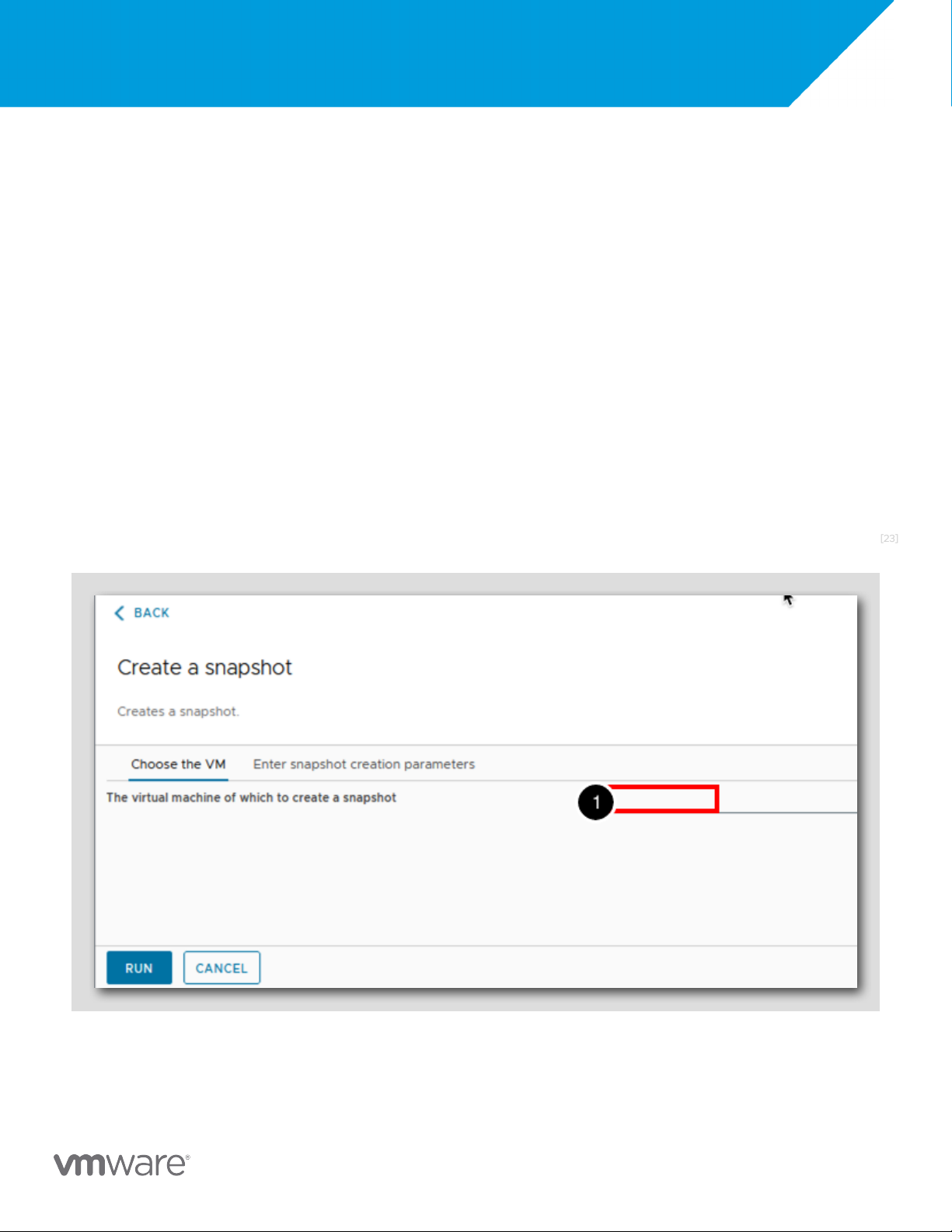
When the workflow run screen appears we can see that we are prompted to provide some information. These are the workflow inputs.
Each workflow has a set of inputs, outputs and attributes assigned to it. We will discuss these elements more in a later lesson, for now
we are just going to choose the Virtual Machine on which we want to take a snapshot. This is effectively the steps an administrator
performs by logging into vCenter, browsing the inventory and clicking on a Virtual Machine ready to use the menu options to take a
snapshot. Orchestrator will perform some of these steps for us, however we still need to direct it to the correct Virtual Machine.
1. Click in the field to browse for the Virtual Machine. [24] Choose the VM object
H A N D S - O N L A B S M A N U A L | 1 7
HOL-2501-11-VCF-L: Getting More Out of It!
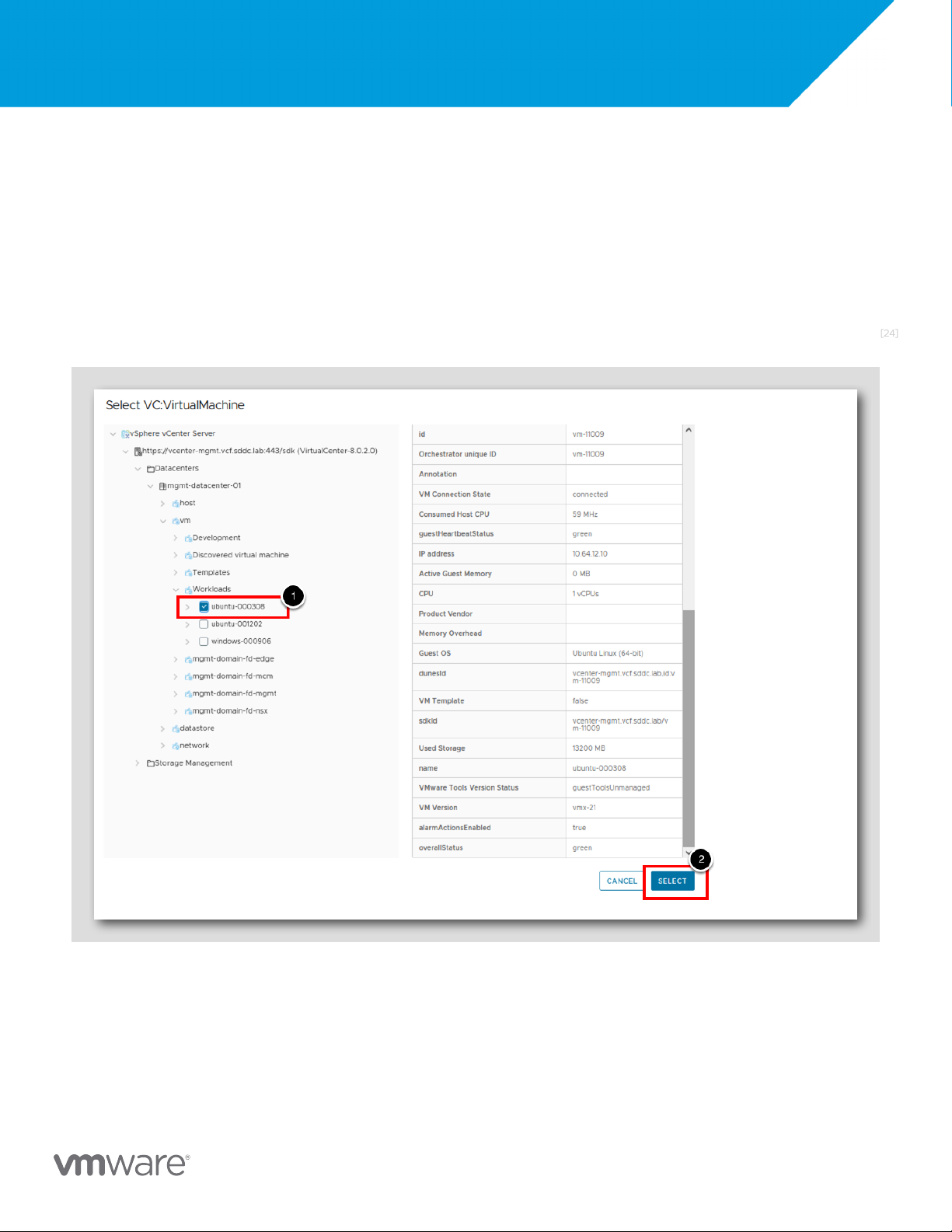
When we clicked into the field we were brought to a screen known as a tree picker by Orchestrator. This is because our input has a type
of VC:VirtualMachine, which is the Orchestrator representation of a vCenter Virtual Machine. Orchestrator now prompts us to browse all
of the vCenter inventories it has access to, and to select the Virtual Machine we want to assign to our workflow input. As we browse the
inventory notice how we can expand sections such as Datacenters and Folders but can only select Virtual Machine inventory entries.
This is Orchestrator filtering the inventory based on the input parameter type. It knows it is expecting a Virtual Machine and will prevent
any other inventory object type being selected.
1. Browse to vSphere vCenter Plug-in > https://vcenter-mgmt.vcf.sddc.lab:443/sdk > Datacenters > mgmt-datacenter-01 > vm
>Workloads> ubuntu-000308 and select the Virtual Machine by clicking in the box to the left of the name.
2.Click the SELECT button to confirm the choice of Virtual Machine.
The name of the VM within your lab may be different from the screenshot as the VM is named automatically during deployment from
Aria Automation. Select any VM with the name in the format ubuntu-xxxxxx e.g. ubuntu-000308. [25]
Enter the snapshot creation parameters
H A N D S - O N L A B S M A N U A L | 1 8
HOL-2501-11-VCF-L: Getting More Out of It!
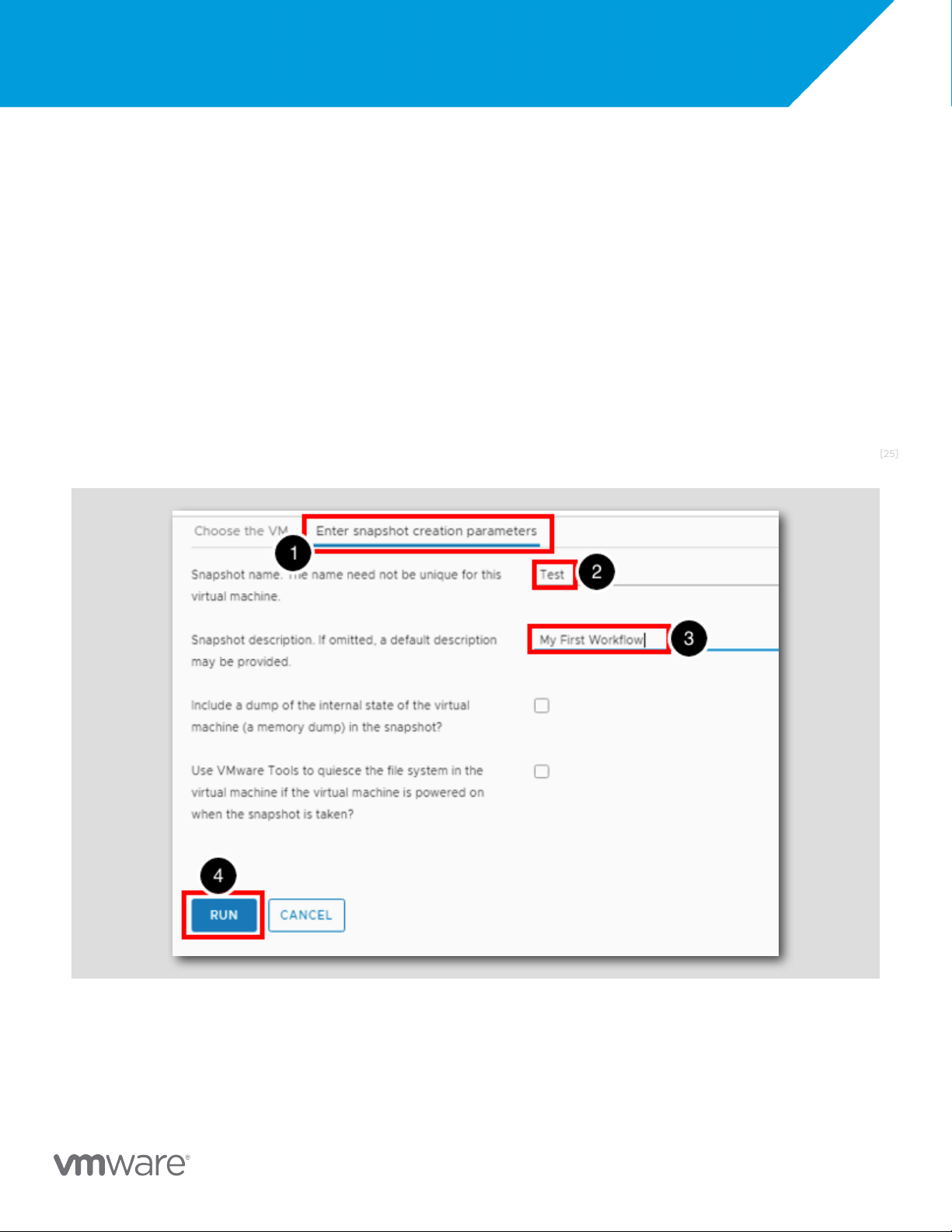
With the Virtual Machine selected we have a few more input parameter values to consider. Again, these are aligned to the options an
Administrator would be presented with if they were performing the operation via vCenter manually. We need to tell Orchestrator what
options to use when creating the snapshot, so that it can instruct vCenter how the snapshot should be created. Let's move to the
second tab in our workflow run screen and complete the remaining options. We can then start the workflow.
1. Select the tab Enter snapshot creation parameters
2.Type in Test for the snapshot name
3.Type in My First Workflow for the description
Leave all the other settings at the default values.
3.Click the RUN button to start the workflow
H A N D S - O N L A B S M A N U A L | 1 9
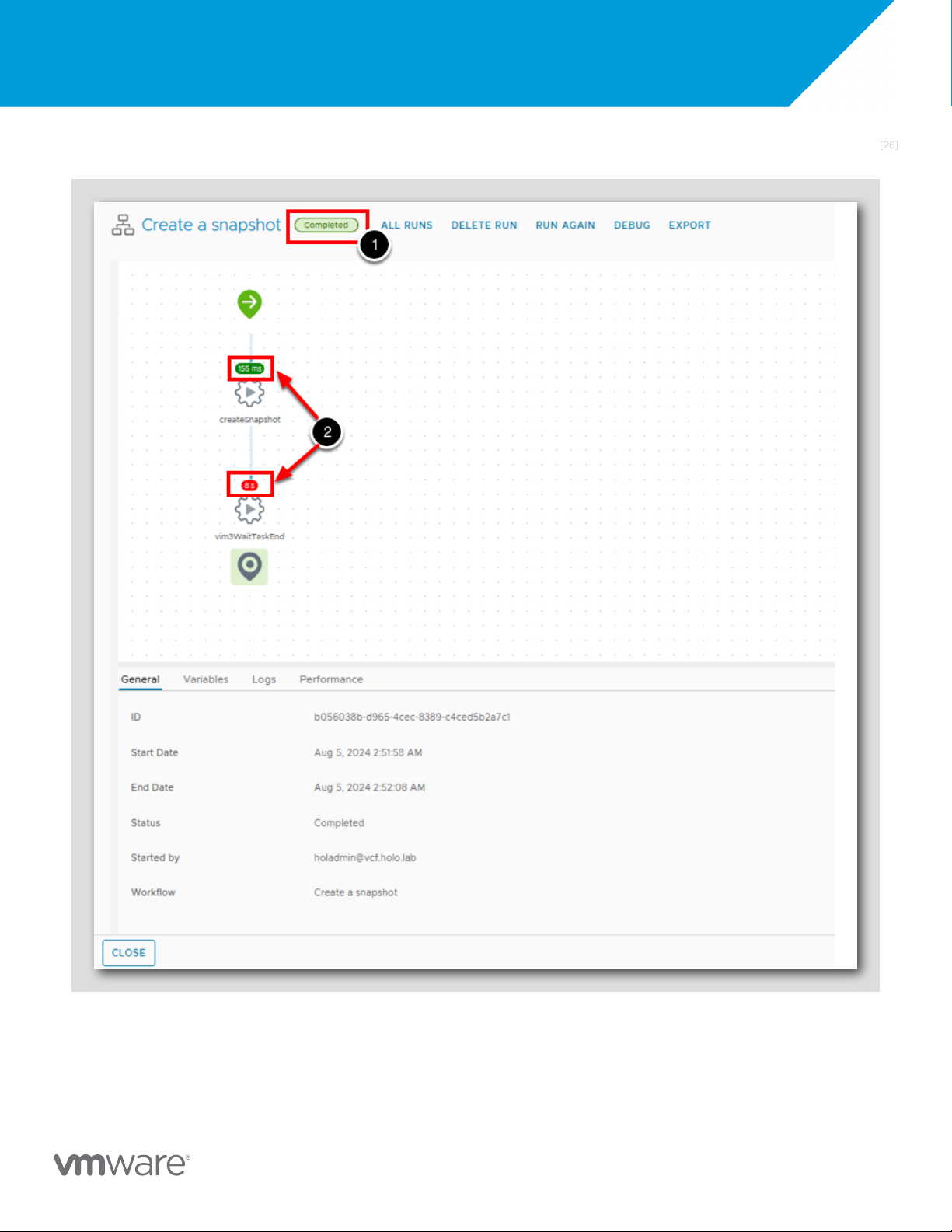
HOL-2501-11-VCF-L: Getting More Out of It! [26] Observe the workflow running
H A N D S - O N L A B S M A N U A L | 2 0
Tài liệu liên quan:
-
Cambridge IELTS 13 Test-1 Overview and Practice Review | Tài liệu Tiếng Anh
6 3 -
IELTS Test 2 Review - Cambridge 13 Preparation Guide | Tài liệu Tiếng Anh
9 5 -
Litfocus Litreading Survey: Student Reading Interests & Habits Questionnaire | Tài liệu Tiếng Anh
9 5 -

Sách Pre-intermediate Market leader - Business English Course Book
25 13 -

Exam booster for B1 preliminary and B1 preliminary for schools with answer key
10 5