HTML, CSS, Bootstrap, Javascript and
jQuery
Meher Krishna Patel
Created on : Octorber, 2017
Last updated : October, 2018
More documents are freely available at PythonDSP
Table of contents
Table of contents i
1 HTML 1
1.1 Introduction . . . . . . . . . . . . . . . . . . . . . . . . . . . . . . . . . . . . . . . . . . . . . . . . . 1
1.2 First code . . . . . . . . . . . . . . . . . . . . . . . . . . . . . . . . . . . . . . . . . . . . . . . . . . 1
1.3 Basic tags . . . . . . . . . . . . . . . . . . . . . . . . . . . . . . . . . . . . . . . . . . . . . . . . . . 2
1.4 Attributes . . . . . . . . . . . . . . . . . . . . . . . . . . . . . . . . . . . . . . . . . . . . . . . . . . 4
1.4.1 Attribute ‘name’ and ‘value’ . . . . . . . . . . . . . . . . . . . . . . . . . . . . . . . . . . . . 4
1.4.2 Core attributes . . . . . . . . . . . . . . . . . . . . . . . . . . . . . . . . . . . . . . . . . . . 4
1.5 Tables . . . . . . . . . . . . . . . . . . . . . . . . . . . . . . . . . . . . . . . . . . . . . . . . . . . . 5
1.6 Text formatting . . . . . . . . . . . . . . . . . . . . . . . . . . . . . . . . . . . . . . . . . . . . . . . 6
1.7 Images . . . . . . . . . . . . . . . . . . . . . . . . . . . . . . . . . . . . . . . . . . . . . . . . . . . . 6
1.8 Lists . . . . . . . . . . . . . . . . . . . . . . . . . . . . . . . . . . . . . . . . . . . . . . . . . . . . . 8
1.9 Links . . . . . . . . . . . . . . . . . . . . . . . . . . . . . . . . . . . . . . . . . . . . . . . . . . . . . 8
1.10 Forms . . . . . . . . . . . . . . . . . . . . . . . . . . . . . . . . . . . . . . . . . . . . . . . . . . . . 10
2 Cascading Style Sheets (CSS) 15
2.1 Introduction . . . . . . . . . . . . . . . . . . . . . . . . . . . . . . . . . . . . . . . . . . . . . . . . . 15
2.1.1 Inline CSS . . . . . . . . . . . . . . . . . . . . . . . . . . . . . . . . . . . . . . . . . . . . . . 15
2.1.2 Embedded CSS . . . . . . . . . . . . . . . . . . . . . . . . . . . . . . . . . . . . . . . . . . . 15
2.1.3 External CSS . . . . . . . . . . . . . . . . . . . . . . . . . . . . . . . . . . . . . . . . . . . . 16
2.2 Basic CSS Selectors . . . . . . . . . . . . . . . . . . . . . . . . . . . . . . . . . . . . . . . . . . . . 17
2.3 Hierarchy . . . . . . . . . . . . . . . . . . . . . . . . . . . . . . . . . . . . . . . . . . . . . . . . . . 18
2.4 More selectors . . . . . . . . . . . . . . . . . . . . . . . . . . . . . . . . . . . . . . . . . . . . . . . . 20
2.4.1 Attribute selector . . . . . . . . . . . . . . . . . . . . . . . . . . . . . . . . . . . . . . . . . . 20
2.5 More properties . . . . . . . . . . . . . . . . . . . . . . . . . . . . . . . . . . . . . . . . . . . . . . . 21
3 Bootstrap 22
3.1 Introduction . . . . . . . . . . . . . . . . . . . . . . . . . . . . . . . . . . . . . . . . . . . . . . . . . 22
3.2 Setup . . . . . . . . . . . . . . . . . . . . . . . . . . . . . . . . . . . . . . . . . . . . . . . . . . . . 22
3.2.1 Download and include files . . . . . . . . . . . . . . . . . . . . . . . . . . . . . . . . . . . . 22
3.2.2 Add CDN . . . . . . . . . . . . . . . . . . . . . . . . . . . . . . . . . . . . . . . . . . . . . . 23
3.2.3 Check setup . . . . . . . . . . . . . . . . . . . . . . . . . . . . . . . . . . . . . . . . . . . . . 23
3.3 Grid system . . . . . . . . . . . . . . . . . . . . . . . . . . . . . . . . . . . . . . . . . . . . . . . . . 24
3.3.1 Example . . . . . . . . . . . . . . . . . . . . . . . . . . . . . . . . . . . . . . . . . . . . . . . 25
3.3.2 Nested columns . . . . . . . . . . . . . . . . . . . . . . . . . . . . . . . . . . . . . . . . . . . 26
3.3.3 Offset . . . . . . . . . . . . . . . . . . . . . . . . . . . . . . . . . . . . . . . . . . . . . . . . 26
3.4 Components . . . . . . . . . . . . . . . . . . . . . . . . . . . . . . . . . . . . . . . . . . . . . . . . . 27
3.4.1 Labels . . . . . . . . . . . . . . . . . . . . . . . . . . . . . . . . . . . . . . . . . . . . . . . . 28
3.4.2 Buttons . . . . . . . . . . . . . . . . . . . . . . . . . . . . . . . . . . . . . . . . . . . . . . . 29
3.4.3 Forms . . . . . . . . . . . . . . . . . . . . . . . . . . . . . . . . . . . . . . . . . . . . . . . . 29
3.4.4 Horizontal form . . . . . . . . . . . . . . . . . . . . . . . . . . . . . . . . . . . . . . . . . . . 30
3.4.5 Form elements . . . . . . . . . . . . . . . . . . . . . . . . . . . . . . . . . . . . . . . . . . . 33
i
Table of contents
3.4.6 Control size . . . . . . . . . . . . . . . . . . . . . . . . . . . . . . . . . . . . . . . . . . . . . 35
3.4.7 More buttons . . . . . . . . . . . . . . . . . . . . . . . . . . . . . . . . . . . . . . . . . . . . 37
3.4.8 Input group . . . . . . . . . . . . . . . . . . . . . . . . . . . . . . . . . . . . . . . . . . . . . 39
3.4.9 Navigation bar (navbar) . . . . . . . . . . . . . . . . . . . . . . . . . . . . . . . . . . . . . . 42
4 JavaScript 45
4.1 Introduction . . . . . . . . . . . . . . . . . . . . . . . . . . . . . . . . . . . . . . . . . . . . . . . . . 45
4.2 First code . . . . . . . . . . . . . . . . . . . . . . . . . . . . . . . . . . . . . . . . . . . . . . . . . . 45
4.2.1 JavaScript in HTML file . . . . . . . . . . . . . . . . . . . . . . . . . . . . . . . . . . . . . . 45
4.3 Keywords, Datatypes, Variables and Operators . . . . . . . . . . . . . . . . . . . . . . . . . . . . . 46
4.3.1 Keywords . . . . . . . . . . . . . . . . . . . . . . . . . . . . . . . . . . . . . . . . . . . . . . 46
4.3.2 Datatypes . . . . . . . . . . . . . . . . . . . . . . . . . . . . . . . . . . . . . . . . . . . . . . 47
4.3.3 Variables . . . . . . . . . . . . . . . . . . . . . . . . . . . . . . . . . . . . . . . . . . . . . . 47
4.3.4 Operators . . . . . . . . . . . . . . . . . . . . . . . . . . . . . . . . . . . . . . . . . . . . . . 48
4.3.5 String to number conversion . . . . . . . . . . . . . . . . . . . . . . . . . . . . . . . . . . . . 49
4.3.6 Convert to integer . . . . . . . . . . . . . . . . . . . . . . . . . . . . . . . . . . . . . . . . . 49
4.3.7 Convert to float . . . . . . . . . . . . . . . . . . . . . . . . . . . . . . . . . . . . . . . . . . . 50
4.3.8 Math . . . . . . . . . . . . . . . . . . . . . . . . . . . . . . . . . . . . . . . . . . . . . . . . 50
4.3.9 String . . . . . . . . . . . . . . . . . . . . . . . . . . . . . . . . . . . . . . . . . . . . . . . . 50
4.3.10 Arrays . . . . . . . . . . . . . . . . . . . . . . . . . . . . . . . . . . . . . . . . . . . . . . . . 50
4.4 Control structure, lo ops and functions . . . . . . . . . . . . . . . . . . . . . . . . . . . . . . . . . . 51
4.4.1 If-else . . . . . . . . . . . . . . . . . . . . . . . . . . . . . . . . . . . . . . . . . . . . . . . . 51
4.4.2 Switch-case-default . . . . . . . . . . . . . . . . . . . . . . . . . . . . . . . . . . . . . . . . . 52
4.4.3 For loop . . . . . . . . . . . . . . . . . . . . . . . . . . . . . . . . . . . . . . . . . . . . . . . 52
4.4.4 While loop . . . . . . . . . . . . . . . . . . . . . . . . . . . . . . . . . . . . . . . . . . . . . 52
4.4.5 do-while . . . . . . . . . . . . . . . . . . . . . . . . . . . . . . . . . . . . . . . . . . . . . . . 53
4.4.6 for-in loop . . . . . . . . . . . . . . . . . . . . . . . . . . . . . . . . . . . . . . . . . . . . . . 53
4.4.7 Continue and break . . . . . . . . . . . . . . . . . . . . . . . . . . . . . . . . . . . . . . . . 53
4.4.8 Functions . . . . . . . . . . . . . . . . . . . . . . . . . . . . . . . . . . . . . . . . . . . . . . 54
4.5 Event handling . . . . . . . . . . . . . . . . . . . . . . . . . . . . . . . . . . . . . . . . . . . . . . . 54
4.6 Conclusion . . . . . . . . . . . . . . . . . . . . . . . . . . . . . . . . . . . . . . . . . . . . . . . . . 55
5 jQuery 56
5.1 Introduction . . . . . . . . . . . . . . . . . . . . . . . . . . . . . . . . . . . . . . . . . . . . . . . . . 56
5.1.1 Requirements . . . . . . . . . . . . . . . . . . . . . . . . . . . . . . . . . . . . . . . . . . . . 56
5.1.2 Add contents . . . . . . . . . . . . . . . . . . . . . . . . . . . . . . . . . . . . . . . . . . . . 57
5.2 jQuery examples . . . . . . . . . . . . . . . . . . . . . . . . . . . . . . . . . . . . . . . . . . . . . . 58
5.2.1 Add jQuery co de . . . . . . . . . . . . . . . . . . . . . . . . . . . . . . . . . . . . . . . . . . 58
5.2.2 jQuery in separate file . . . . . . . . . . . . . . . . . . . . . . . . . . . . . . . . . . . . . . . 60
5.2.3 Get input from user . . . . . . . . . . . . . . . . . . . . . . . . . . . . . . . . . . . . . . . . 61
5.3 Selectors . . . . . . . . . . . . . . . . . . . . . . . . . . . . . . . . . . . . . . . . . . . . . . . . . . . 64
5.3.1 Select elements . . . . . . . . . . . . . . . . . . . . . . . . . . . . . . . . . . . . . . . . . . . 64
5.3.2 Filters . . . . . . . . . . . . . . . . . . . . . . . . . . . . . . . . . . . . . . . . . . . . . . . . 67
5.4 Operations . . . . . . . . . . . . . . . . . . . . . . . . . . . . . . . . . . . . . . . . . . . . . . . . . 69
5.5 Event handling . . . . . . . . . . . . . . . . . . . . . . . . . . . . . . . . . . . . . . . . . . . . . . . 69
ii PythonDSP
Chapter 1
HTML
1.1 Introduction
In this chapter, various component of HTML are discussed to design a web page.
The basic structure for an HTML page is shown below.
Entries inside the /< . . . /> are known as tags. Most of the tags has an opening and closing e.g. <head>
(opening head) and </head> (closing head). Some of the tags do not have closing tags e.g. <!DOCTYPE
. . . > and <br />. We need to write the HTML codes inside the tags.
The comments are written b etween ‘<!–’ and ‘–>’.
Here Line 1 gives the details of the ‘HTML version’ to the web-browser. The ‘html’ tells it is version 5.
The ‘head’ tag (Lines 3-5) contains the header related tags e.g. ‘title for the page’ and ‘links for the css files’
etc.
The ‘body’ tag (7-11) contains the actual HTML code which is displayed on the web-browser. Also, we add
all the JavaScript related codes just before the closing body tag (</body>).
1 <!DOCTYPE html> <!-- tells browser above the html version -->
2 <html> <!-- beginning of the html document -->
3 <head>
4 <!-- header related tags e.g. title, links etc. -->
5 </head>
6
7 <body>
8 <!-- actual html document here -->
9
10 <!-- add JavaScript files here -->
11 </body>
12 </html>
1.2 First code
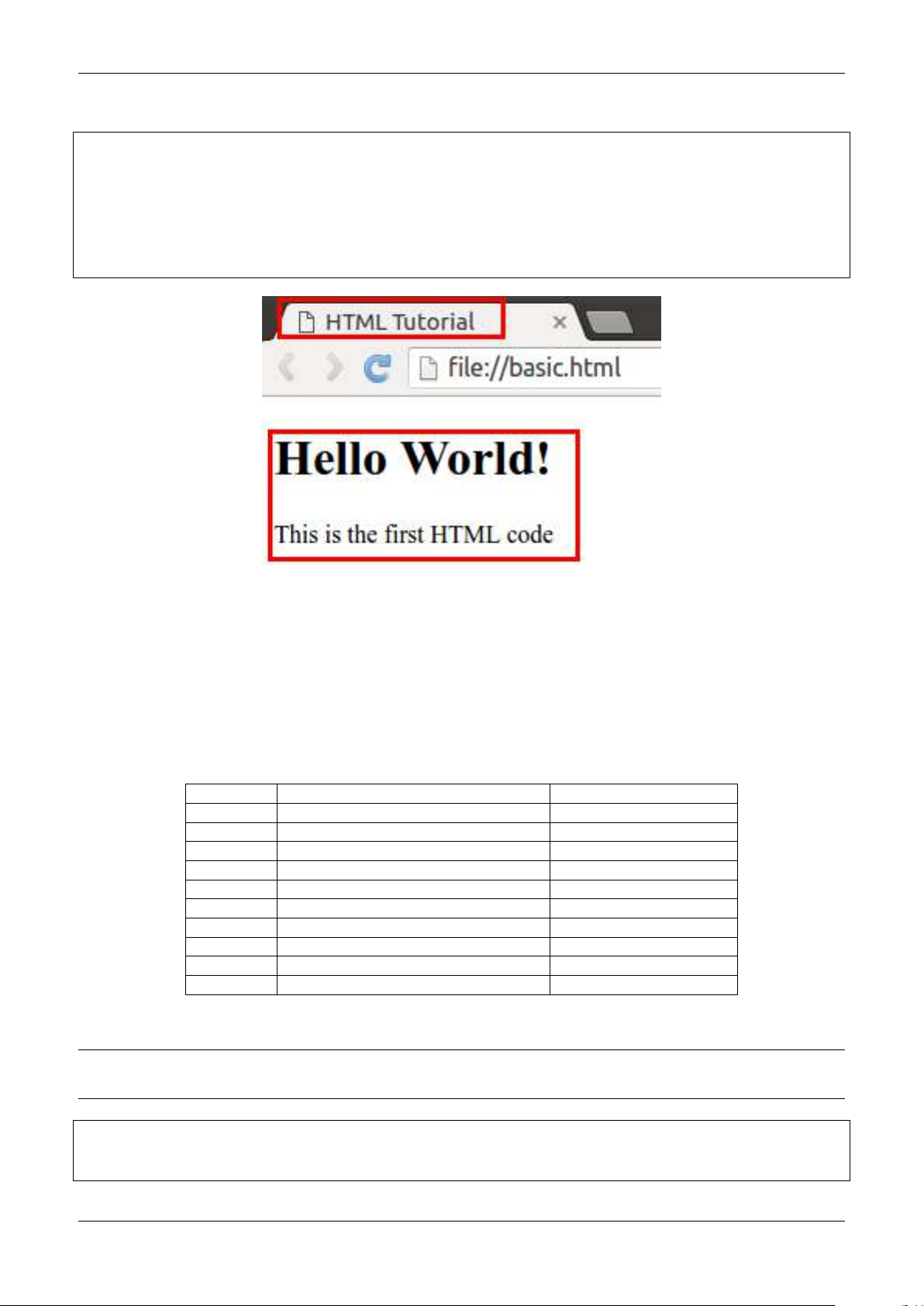
In below code, the message “Hello World” is displayed on the HTML page. The Fig. 1.1 is the resultant HTML
page.
The title (Line 4) appears on the top of the browser.
The tag <h1> is called ‘header’ tag, which has the larger size than the normal text (see the size of ‘Hello
World!’).
The tag <p> is called the ‘paragraph’ tag, which can be used to write the paragraphs.
<!DOCTYPE html>
<html>
(continues on next page)
1
1.3. Basic tags
(continued from previous page)
<head>
<title>HTML Tutorial</title>
</head>
<body>
<h1> Hello World! </h1>
<p> This is the first HTML code </p>
</body>
</html>
Fig. 1.1: First code
1.3 Basic tags
The Table 1.1 shows the list of tags which are required for writing the basic ‘HTML’ codes i.e. without any
style e.g. bold, italics and numbering etc.
Table 1.1: List of basic tags
Tag Description Example
h1, . . . , h6 Header tag h1 to h6 <h2> Hi </h2>
p paragraphs (Line changes at the end) <p> Hi </p>
span No line change after span <span>Hi</span> Bye.
div make division between contents <div> . . . </div>
a hyperlink see Section 1.9
center Move content to center <center> Hi </center>
br Line break (no closing tag) <br /> or <br>
hr horizontal line (no closing tag) <hr /> or <hr>
pre preserve formatting <pre> . . . . </pre>
table insert table see Section 1.5
Let’s see the example of each of these tags,
Note: All the new codes are added below the previous codes in the ‘body’ tag. Therefore only newly added
codes are shown in the tutorial.
<h2> Heading 2 </h2>
<h6> Heading 6 </h6>
(continues on next page)
2 PythonDSP
Chapter 1. HTML
(continued from previous page)
<p> This is paragraph </p>
<span> This is span.</span>
<span> The 'br' tag is used after span to break the line </span>
<br/>
<div style="color:blue;">
The 'div' tag can be used for formatting the tags inside it at once using 'style' and 'classes'
˓
etc.
<p> This paragraph is inside the 'div' tag </p>
<span> This span is inside the 'div' tag </span>
<br/>
</div>
<center>
<h3> Heading 3 is centered</h3>
<
p><span> Centered span inside the paragraph.</span><p>
</center>
Two horizontal line is drawn using two 'hr' tag.
<hr />
<hr>
<pre> 'pre' tag preserve the formatting (good for writing codes)
# Python code
x = 2
y = 3
print(x+y)
</
pre>
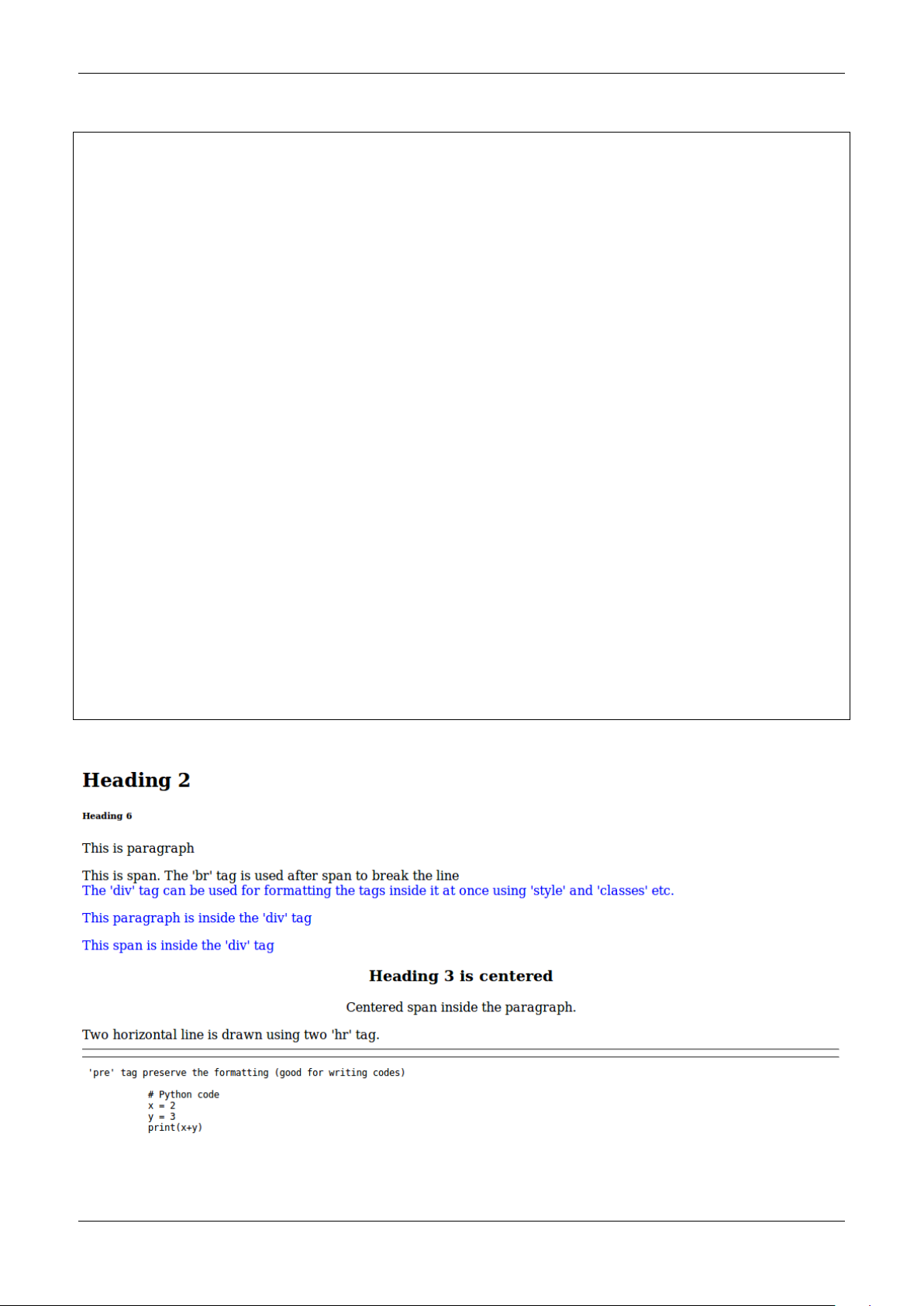
Fig. 1.2 is the output of above code. Read the text to understand each tag,
Fig. 1.2: Basic tags : Attribute ‘style’ is used in ‘div’ tag
3 Meher Krishna Patel
1.4. Attributes
1.4 Attributes
In Fig. 1.2, we saw an example of attribute (i.e. style) which changed the color of all the elements to ‘blue’ inside
the ‘div’ tag.
1.4.1 Attribute ‘name’ and ‘value’
Attribute is defined inside the opening part of a ‘tag’. For example, in the below co de, the attribute ‘style’
is defined inside the ‘div’ tag.
<div style="color:blue;">
</div>
An attribute has two parts i.e. name and value’. For example, in the above code, name and value of
the attribute are style and blue respectively.
1.4.2 Core attributes
Below are the three core attributes which are used frequently in web design.
id : The ‘id’ is the unique name which can be given to any tag. This is very useful in distinguishing the
element with other elements.
<p id='para1'> This is paragraph with id 'para1' </p>
<
p id='para2'> This is paragraph with id 'para2' </p>
class : The attribute ‘class’ can be used with multiple tags. This is very useful in making groups in HTML
design.
<p class="c_blue"> This is paragraph with class 'blue'</p>
<span class="c_blue"> This is span with class 'blue'</span>
style : We already see the example of style attribute, which can be used to change the formatting of the
text in HTML design. We can specify various styles which are discussed in
Chapter 2.
<p style="font-weight:bold; color:red;">Style attribute is used to bold and color</p>
Note: Above three attributes are used with ‘CSS (cascading style sheet)’ and JavaScript/jQuery, which are the
very handy tools to enhance the look and functionalities of the web-page respectively. The CSS is discussed in
Chapter 2, whereas JavaScript and jQuery are discussed in Chapter 4 and Chapter 5 respectively.
Also we can define multiple attributes for one tag as shown below,
<p class="my_class" id="para_with_class" style="color:green"> Multiple attributes </p>
The other useful attributes are listed in Table 1.2
Table 1.2: List of attributes
Name Values Description
id user defined names <p id=’p_1’> Hi </p>
class user defined names <p class=’p_class’> Hi </p>
style CSS styles <p style=”color:red; font-weight:bold;”> Hi </p>
align left, right, center horizontal alignment
width numeric value or % value width of images and tables etc.
height numeric value height of images and tables etc.
4 PythonDSP
Chapter 1. HTML
1.5 Tables
In this section, we will learn to draw tables along with s ome attributes which are discussed in Table 1.2. Table 1.3
shows the list of tags available to create the table, which are used in Listing 1.1.
Table 1.3: Tags and attributes for creating tables
Tag Description
table beginning and end of table
tr row of table
th header cell
td data cell
Attributes
rowspan number of rows to merge
colspan number of columns to merge
border width of border
cellpadding width of whitespace between two border
cellspacing width of whitespace within a border
bgcolor background color
bordercolor color of border
width width of table (numeric or %)
height height of table (numeric)
caption caption for table
Some of the attributes of Table 1.3 are used in b elow example,
Listing 1.1: Table with border and color
1 <!-- border - color, width and height -->
2 <table border="1" bordercolor="black" width="450" height="100">
3 <caption>Table 1 : Various tags of table</caption>
4 <tr bgcolor="red" > <!-- row -->
5 <th>Column 1</th> <!-- header -->
6 <th>Column 2</th>
7 <th>Column 3</th>
8 </
tr>
9
10 <tr bgcolor="cyan"> <!-- background color -->
11 <td>Data 1</td> <!-- data -->
12 <td>Data 2</td>
13 <td>Data 3</td>
14 </tr>
15
16 <tr bgcolor="yellow"> <!-- row -->
17 <td colspan="2">New Data 1</td> <!-- column span -->
18 <td>New Data 2</td> <!-- data -->
19 </tr>
20 </table>
21
22
23
24 <!-- width in % -->
25 <table border="1" bordercolor="black" width="80%" height="100">
26 <caption> Table 2 : Width is 80%</caption>
27 <tr bgcolor="red" >
28 <
th>Column 1</th>
29 <
th>Column 2</th>
30 <th>Column 3</th>
31 </
tr>
32
(continues on next page)
5 Meher Krishna Patel
1.6. Text formatting
(continued from previous page)
33 <tr bgcolor="cyan"> <!-- row -->
34 <td>Data 1</td> <!-- data -->
35 <td>Data 2</td>
36 <td>Data 3</td>
37 </tr>
38
39 </table>
Fig. 1.3 is the output of above code,
Fig. 1.3: Table generated by Table 1.3
1.6 Text formatting
In this section, we will see some of the text formatting options (see Table 1.4) e.g. bold, italic, subscript and strike
etc.
Table 1.4: Text formatting
Tag Description
b bold
i italic
u, ins underline
strike, del strike
sup superscript
sub subscript
big big size text
small small size text
Below are the some of the examples of text formatting, whose results are shown in Fig. 1.4,
<!-- Text formatting -->
<p>This is <b>bold</b> text</p>
<p>This is <strike>striked</strike> text</p>
<
p>This is <sub>subscript</sub> text</p>
1.7 Images
Image tag has two important attribues i.e. ‘src’ and ‘alt’ as described below,
src : tells the location of ‘image’ file e.g. in Line 2 the image ‘logo.jpg’ will be searched insid e the folder
‘img’.
6 PythonDSP
Chapter 1. HTML
Fig. 1.4: Text formatting
alt : is the ‘alternate text’ which is displayed if image is not found. For example, in Line 6, the name of the
image is incorrectly written i.e. ‘logoa’ (instead of ‘logo’), therefore the value of ‘alt’ i.e. ‘Missing Logo.jpg’
will be displayed as shown in
Fig. 1.5.
1 <!-- Images -->
2 <img src="img/logo.jpg" alt="Logo.jpg" width="20%"/>
3
4 <
br/> <br/>
5
6 <img src="img/logoa.jpg" alt="Missing Logo.jpg" width="20%"/>
Fig. 1.5: Images
Note: We can use other attributes as well e.g. height’, align and border etc.
7 Meher Krishna Patel
1.8. Lists
1.8 Lists
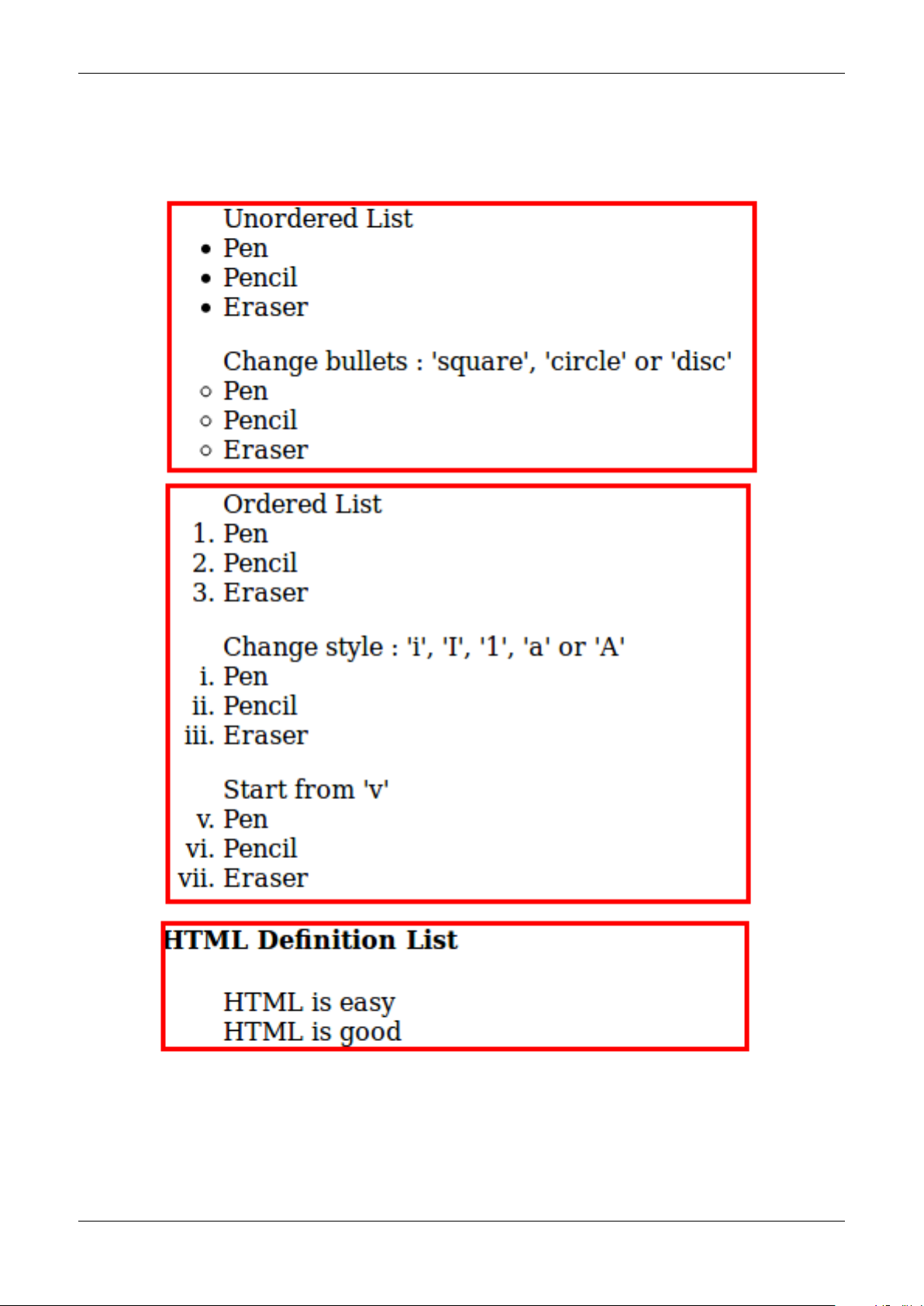
There are three type of lists in HTML,
Unordered list : bullet are used in it (see Lines 2 and 9)
Ordered list : numbers are used in it (see Lines 15, 22 and 28)
Definition list : This can be used for writing definitions in HTML (see Line 35)
1 <!-- Lists -->
2 <!-- unordered list -->
3 <ul> Unordered List
4 <li>Pen</li>
5 <li>Pencil</li>
6 <li>Eraser</li>
7 </ul>
8
9 <ul type="circle"> Change bullets : 'square', 'circle' or 'disc'
10 <li>Pen</li>
11 <li>Pencil</li>
12 <li>Eraser</li>
13 </ul>
14
15
<!-- ordered list -->
16 <ol> Ordered List
17 <li>Pen</li>
18 <li>Pencil</li>
19 <li>Eraser</li>
20 </ol>
21
22 <ol type='i'> Change style : 'i', 'I', '1', 'a' or 'A'
23 <li>Pen</li>
24 <
li>Pencil</li>
25 <li>Eraser</li>
26 </ol>
27
28 <ol type='i' start="5"> Start from 'v'
29 <li>Pen</li>
30 <li>Pencil</li>
31 <li>Eraser</li>
32 </ol>
33
34
<!-- Definition list -->
35 <dl>
36 <dt> <h4>HTML Definition List</h4> </dt>
37 <dd> HTML is easy </dd>
38 <dd> HTML is good </dd>
39 <dl>
The outputs of above codes are shown in Fig. 1.6,
1.9 Links
<!-- links -->
<p>Go to paragraph with<a href="#para1"> id='para1'</a></p>
<a href="http://pythondsp.readthedocs.io"> PythonDSP </a>
<
br>
<p><a href="js.html" target="_self"> JavaScript Tutorial</a> in same window.</p>
<
p><a href="js.html" target="_blank"> JavaScript Tutorial</a> in new Window.</p>
(continues on next page)
8 PythonDSP
Chapter 1. HTML
Fig. 1.6: Lists
9 Meher Krishna Patel
1.10. Forms
(continued from previous page)
<p><a href="http://pythondsp.readthedocs.io/pdf">Download PDF, DOC or Zip Files</a></p>
<p><a href="mailto:pythondsp@gmail.com">Email me</a></p>
<p><a href="mailto:pythondsp@gmail.com?subject=Feedback&body=Your feedback here">Feeback email</a></p>
Note: We can change the color of the links using ‘alink (active link)’, ‘link’ and ‘vlink (visited link’, by defining
these attributes in the ‘body tag’ as shown below,
<body alink="green" link="blue" vlink="red">
1.10 Forms
Forms can have different types of controls to collect the input-data from users, which are listed below and shown
in
Table 1.5,
Text input
Text area
Radio button
Checkbox
Select box
File select
Buttons
Submit and reset buttons
Hidden input
10 PythonDSP
Chapter 1. HTML
Table 1.5: List of control inputs and their attributes
Control Attributes Values Description
Input : text type text, password
value user-defined initial value in the area
name user-defined name send to server
size numeric value width of the text area
maxlength numeric value maximum number of characters
Input : radio type radio
name user-defined name send to server
value user-defined value value of the button if selected
checked check the button by default
Input : check box type checkbox
name user-defined name send to server
value user-defined value value of the box if selected
checked check the box by default
Input : button type button trigger client side script
submit submit the form and run ‘action’
reset reset form
image create image button
method get, post get or post method
action user-defined action to perform on submit
Input : hidden type hidden will not display on html, but can be used
for sending information to server
Selection box name user-defined name send to server
size numeric value enables scroll (default dropdown)
multiple numeric value select multiple items
value user-defined value value of the item if selected
selected select item by default
Text area rows, cols numeric value number of rows and cols
name user-defined name send to server
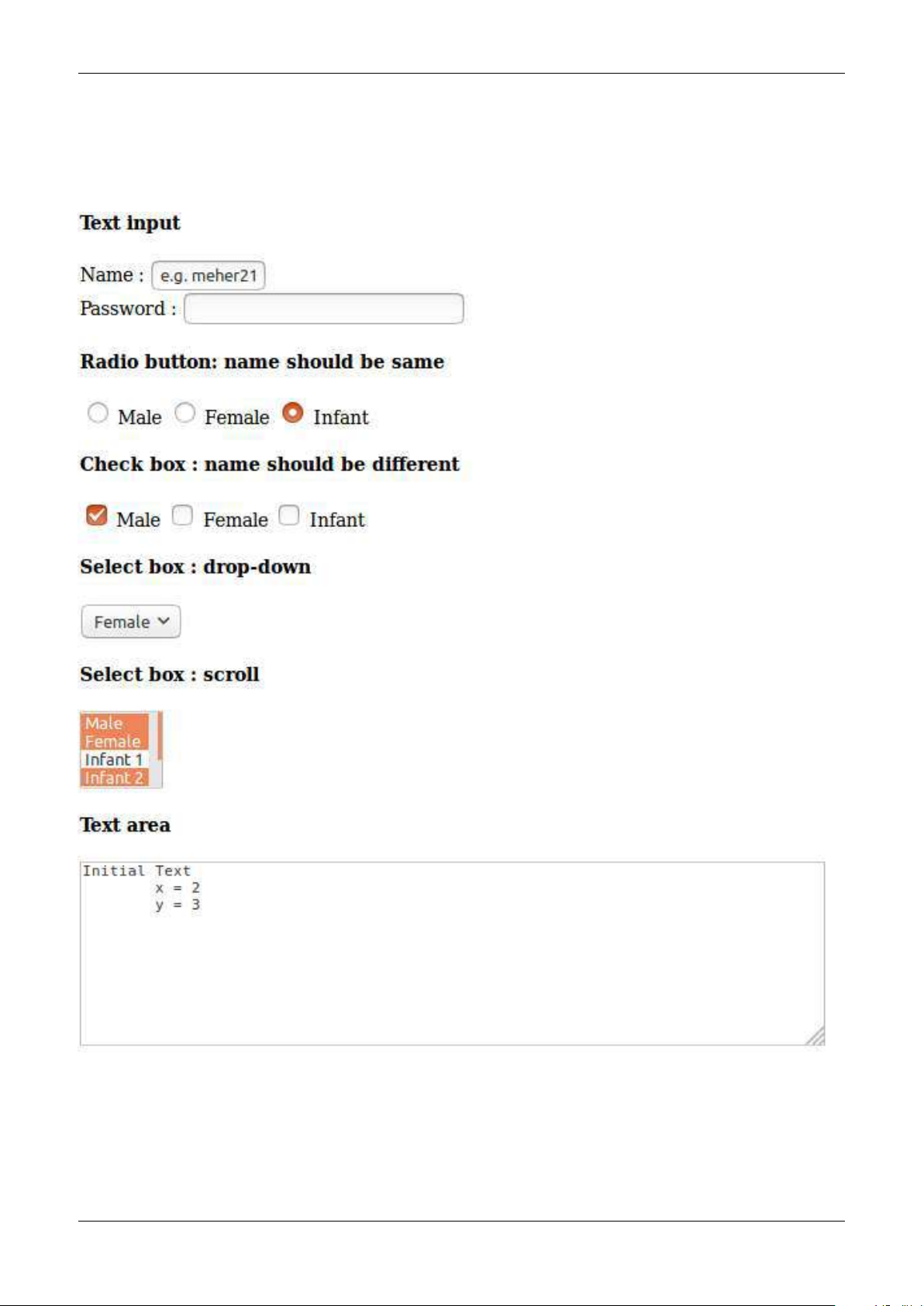
Below are the exmaple of the control inputs described in Table 1.5
<!-- Forms -->
<form>
<h4>Text input </h4>
Name : <input type="text" name="user_name" size="4" value="e.g. meher21" maxlength="10"><br>
Password : <input type="password" name="user_pass" ><br>
<
h4> Radio button: name should be same</h4>
<input type="radio" name="r_gender"> Male
<input type="radio" name="r_gender"> Female
<input type="radio" name="r_gender" checked> Infant
<h4> Check box : name should be different</h4>
<input type="checkbox" name="c_male" checked> Male
<input type="checkbox" name="c_female"> Female
<input type="checkbox" name="c_infant"> Infant
<
h4> Select box : drop-down</h4>
<select name="s_box">
<option value="s_male">Male</option>
<option value="s_female" selected>Female</option>
<option value="s_infant">Infant</option>
</select>
<h4> Select box : scroll</h4>
(continues on next page)
11 Meher Krishna Patel
1.10. Forms
(continued from previous page)
<select name="s_box" size="4" multiple>
<option value="s_male" selected>Male</option>
<option value="s_female" selected>Female</option>
<option value="s_infant">Infant 1</option>
<option value="s_infant" selected>Infant 2</option>
<option value="s_infant">Infant 3</option>
<option value="s_infant">Infant 4</option>
</select>
<
h4> Text area</h4>
<textarea rows="10" cols="80" name="txt_area">Initial Text
x = 2
y = 3
</textarea> <!-- formatting work as pre -->
</form>
Fig. 1.7 is the output of above code,
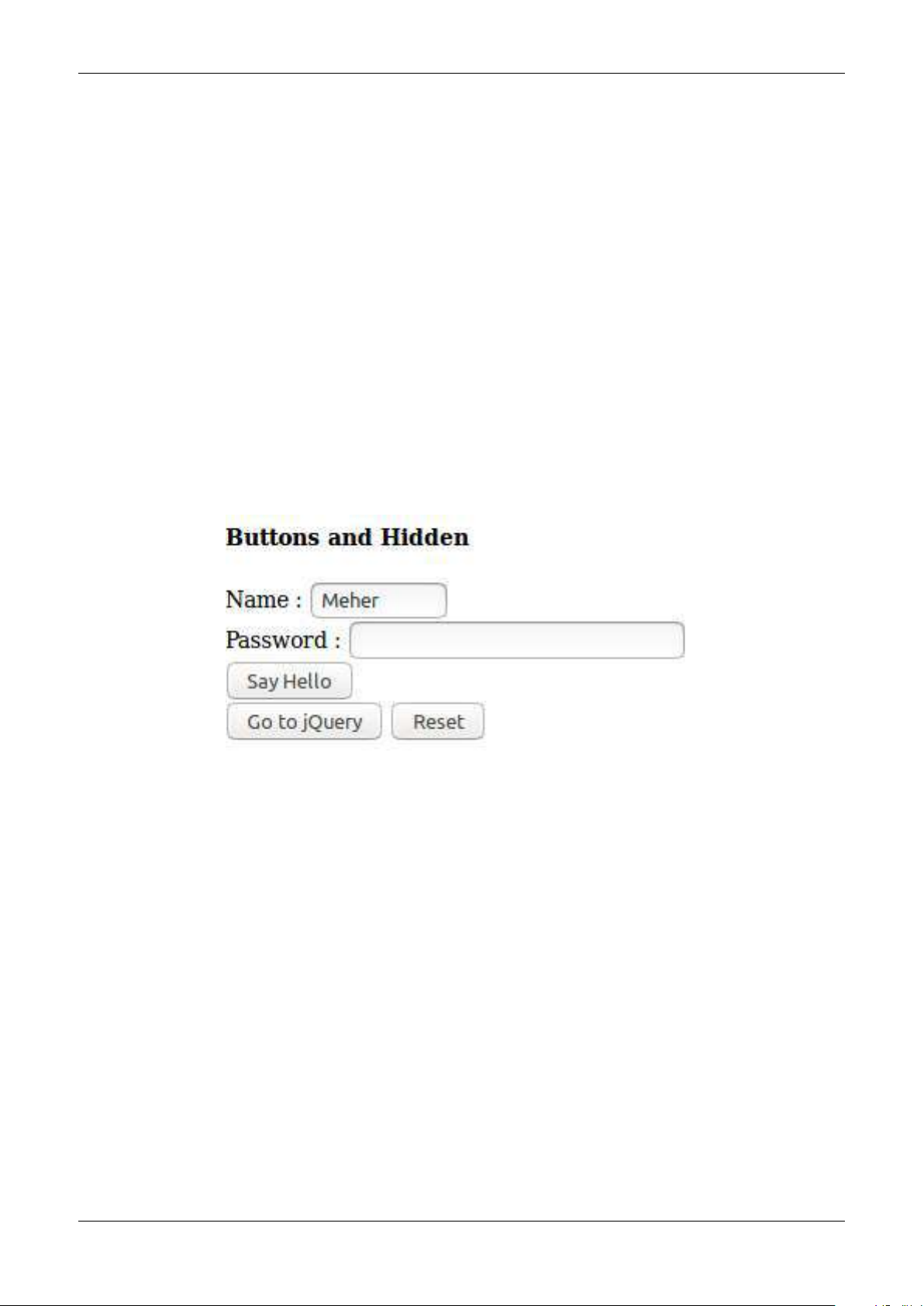
Below is the code which shows the working of various buttons. Note that method and action are defined
in this form, which will be triggered on ‘submit’ button. Lastly, ‘hidden’ option is used in this example.
<form method="get|post" action="jquery.html">
<h4> Buttons and Hidden</h4>
Name : <input type="text" name="user_name" size="4" value="Meher" maxlength="16"><br>
Password : <input type="password" name="user_pass" ><br>
<
input type="button" onclick="alert('Hello')" name="b_alert" value="Say Hello"/><br>
<input type="submit" name="b_submit" value="Go to jQuery"/>
<input type="reset" name="b_reset" value="Reset"/><br>
<
input type="hidden" name="h_data" value="html_tutorial">
</form>
Fig. 1.8 is the output of above code,
12 PythonDSP
Chapter 1. HTML
Fig. 1.7: Various control inputs for creating form
13 Meher Krishna Patel
1.10. Forms
Fig. 1.8: Various buttons and hidden-input in the form
14 PythonDSP
Chapter 2
Cascading Style Sheets (CSS)
2.1 Introduction
CSS is used to enhance the look of the web page. In Section 1.4.2, we saw the attribute ‘style’, which is used for
changing the color of the text. Let’s rewrite the example of ‘style’ as shown in next section.
2.1.1 Inline CSS
Below code is an example of ‘inline CSS’, where the styles are defined inside the individual tags.
1 <!-- css.html -->
2
3 <!DOCTYPE html>
4 <html>
5 <head>
6 <title>CSS Tutorial</title>
7
8 </head>
9 <body>
10
11 <
h3 style="color:blue"> Heading 1 </h3>
12 <h3 style="color:blue"> Heading 3 </h3>
13 <h3 style="color:blue"> Heading 3 </h3>
14
15 </body>
16 </html>
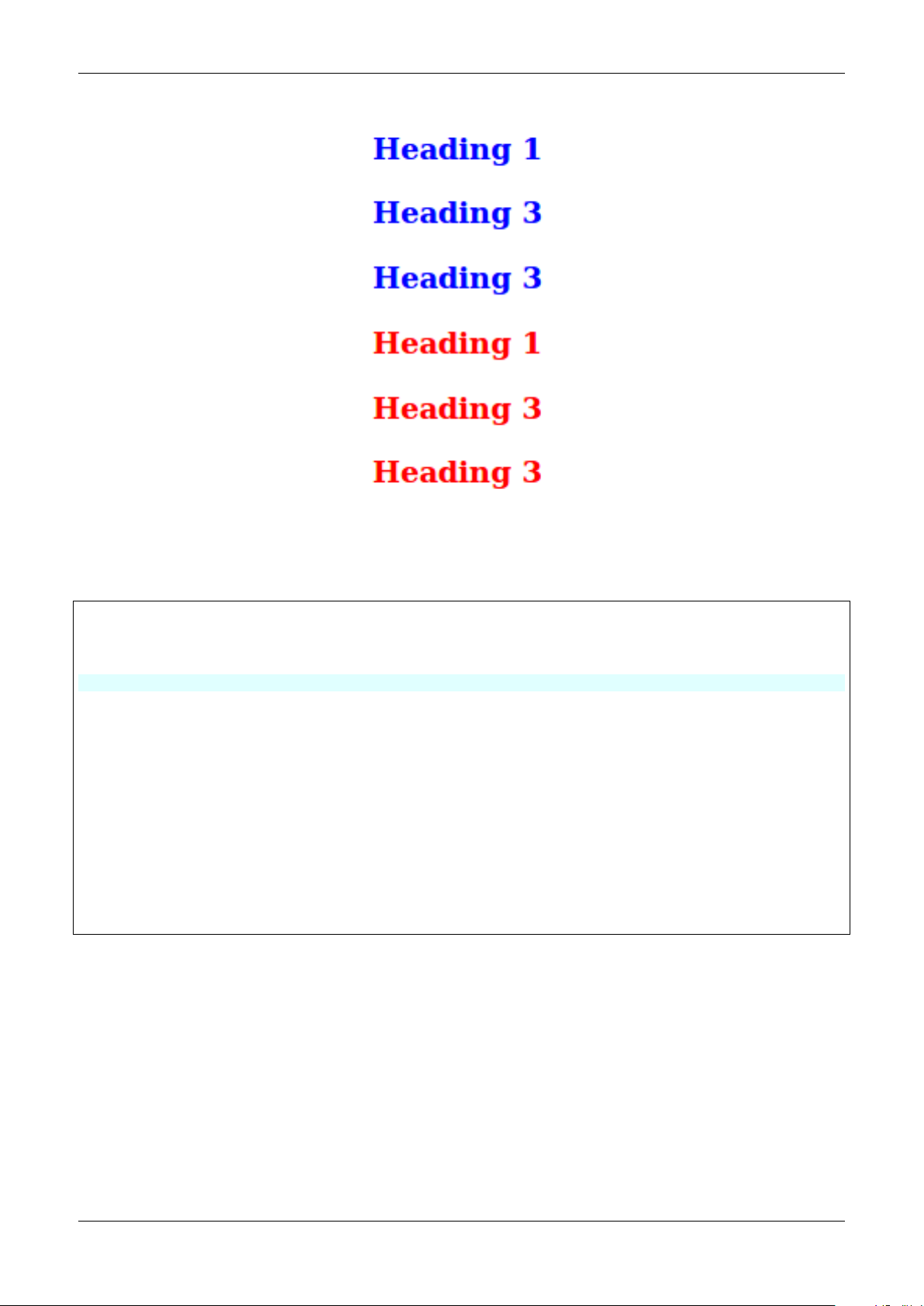
In the above code, we have three ‘headings’ with font-color as ‘blue’. Suppose, we want to change the color to red,
then we must go to to individual ‘h3’ tag and then change the color. This is easy in this case, but if we have 100
headings in 5 different ‘html’ files, then this process is not very handy. In such cases, CSS can be quite useful as
shown in next section.
2.1.2 Embedded CSS
In the below co de, the style is embedded inside the ‘style’ tag as shown in Lines 8-17. Here, we have defined two
classes i.e. ‘h3_blue (Lines 21-23)’ and ‘h3_red (Lines 26-28)’. Then, the selectors at Lines 9 and 13 targets the
class ‘h3_blue’ & ‘h3_red’, and change the color to blue and red respectively. In this chapter, we will discuss the
selectors (e.g. h3.h3_blue) in more details.
Note:
In CSS, the comments are written between /* and */.
15
2.1. Introduction
CSS has three parts,
Selectors e.g. p, h3.h3_blue
Properties e.g. color
Values of properties e.g. red
1 <!-- css.html -->
2
3 <!DOCTYPE html>
4 <html>
5 <head>
6 <title>CSS Tutorial</title>
7
8 <style type="text/css">
9 h3.h3_blue{ /*change color to blue*/
10 color: blue;
11
}
12
13 h3.h3_red{ /*change color to red*/
14 color:red;
15 }
16 </style>
17
18 </head>
19 <body>
20
21
<h3 class='h3_blue'> Heading 1 </h3>
22 <h3 class='h3_blue'> Heading 3 </h3>
23 <h3 class='h3_blue'> Heading 3 </h3>
24
25
26 <h3 class='h3_red'> Heading 1 </h3>
27 <h3 class='h3_red'> Heading 3 </h3>
28 <h3 class='h3_red'> Heading 3 </h3>
29
30 </body>
31 </html>
Below is the output of above code,
2.1.3 External CSS
We can write the ‘CSS’ code in different file and then import the file into ‘html’ do cume nt as shown in this section.
In this way, we can manage the files easily.
The ‘CSS’ code is saved in the file ‘my_css.css’ which is saved inside the folder ‘asset/css’.
/* asset/css/my_css.css */
h3.h3_blue{
color: blue;
}
h3.h3_red{
color:red;
}
Next, we need to imp ort the CSS file into the ‘html’ file as shown in Line 7.
1 <!-- css.html -->
2
(continues on next page)
16 PythonDSP
Chapter 2. Cascading Style Sheets (CSS)
Fig. 2.1: Embedded CSS
(continued from previous page)
3 <!DOCTYPE html>
4 <html>
5 <head>
6 <title>CSS Tutorial</title>
7 <link rel="stylesheet" type="text/css" href="asset/css/my_css.css">
8 </
head>
9 <body>
10
11 <h3 class='h3_blue'> Heading 1 </h3>
12 <h3 class='h3_blue'> Heading 3 </h3>
13 <
h3 class='h3_blue'> Heading 3 </h3>
14
15
16 <h3 class='h3_red'> Heading 1 </h3>
17 <h3 class='h3_red'> Heading 3 </h3>
18 <h3 class='h3_red'> Heading 3 </h3>
19
20 </body>
21 </html>
2.2 Basic CSS Selectors
There are three types of selectors in CSS,
Element : can be selected using it’s name e.g. ‘p’, ‘div’ and ‘h1’ etc.
Class : can be selected using ‘.className’ operator e.g. ‘.h3_blue’.
ID : can be selected using ‘#idName’ e.g. ‘#my_para’.
We will use following HTML for understanding the selectors,
17 Meher Krishna Patel

Preview text:

8 9 10 11