Đề cương môn Tin học đại cương - trường đại học Kiến trúc
Xây dựng bảng tính mô tả bài toán kieerm tra bền théo hình chũ I. Đề cương môn Tin học đại cương - trường đại học Kiến trúc. Tài liệu được sưu tầm gồm 46 trang giúp bạn tham khảo, ôn tập và đạt kết quả cao
Môn: Tin học đại cương ( HAU ) 19 tài liệu
Trường: Trường Đại học Kiến trúc Hà Nội 335 tài liệu
Tác giả:








Preview text:
TRƯỜNG ĐH KIẾN TRÚC HÀ NỘI KHOA CÔNG NGHỆ THÔNG TIN EXCEL FOR ENGINEERS DÂN QUỐC CƯƠNG EXCEL FOR ENGINEERS
Chapter 1: Basic Operations Chapter contents
Exercise 1: Simple Arithmetic - Phép toán số học đơn giản
Exercise 2: The Arithmetic Operators - Các phép toán
Exercise 3: Formatting (Displayed and Stored Values) - Định dạng
Exercise 4: Working with Fractions – Làm việc với phân số
Exercise 5: Resistors in Parallel – Điện trở mắc song song
Copying Formulas: What Happens to References? What's in a Name?
Exercise 6: Vander Waals Equation of state – Phương trình trạng thái
Special Symbols, Subscripts, and Superscripts – Các ký tự đặc biệt, chỉ số trên, chỉ số dưới pg. 1 EXCEL FOR ENGINEERS
Exercise 1: Simple Arithmetic Yêu cầu
Thực hiện các phép tính số học đơn giản (phép cộng, phép nhân) trong excel
Kỹ thuật excel -
Thực hiện kỹ thuật nhập liệu -
Thực hiện các kỹ thuật copy công thức
Exercise 2: The Arithmetic Operators
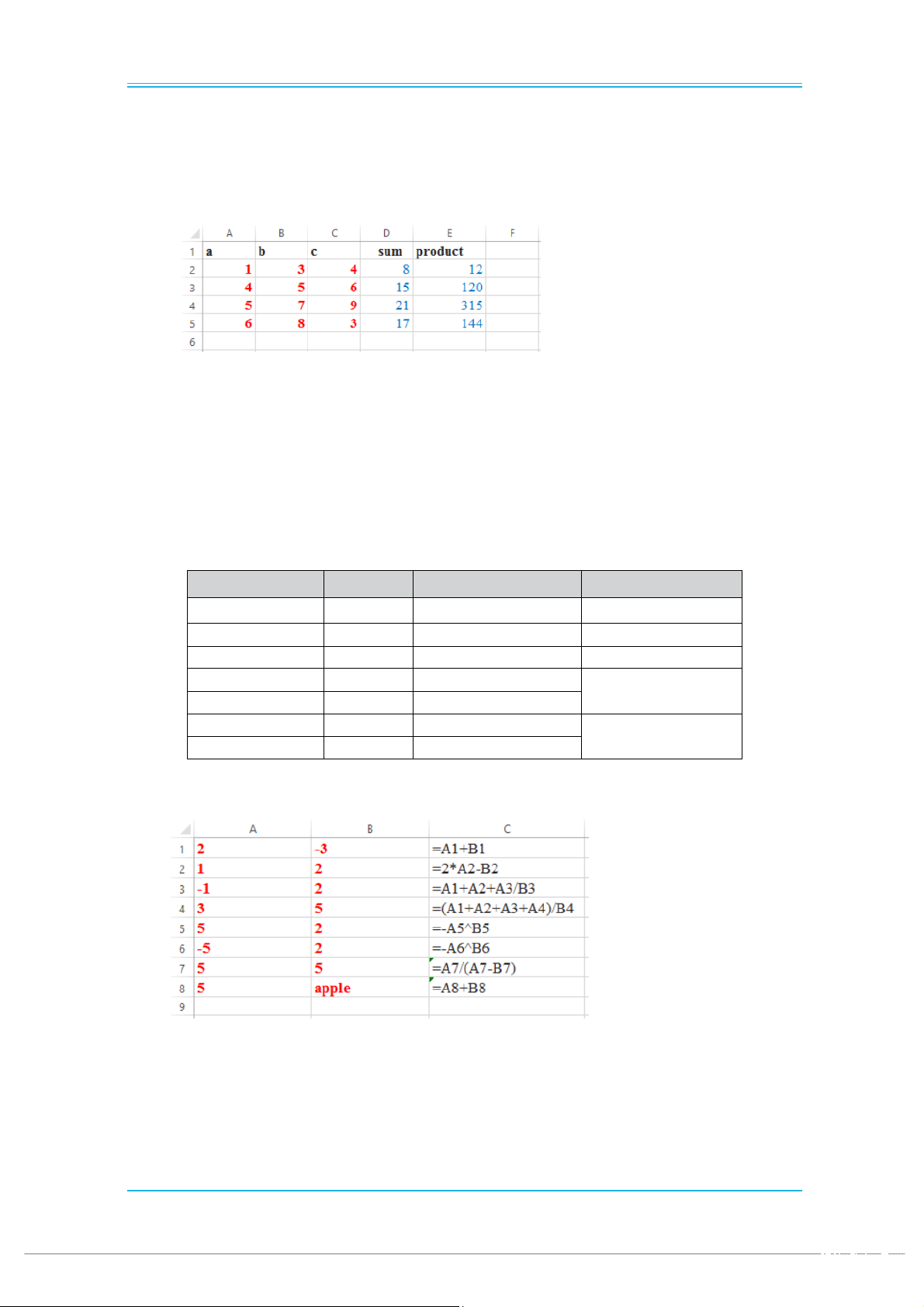
Các phép toán số học trong excel Operation Symbol Examples Order of Precedence Negation – -1 and -A1 1 Percentage % 5% 2 Exponentiation ^ 2^ 3, A1^ 3, A1^ B1 3 Multiplication * 2*3, 2*A1, A1*B1 4 Division / 2/3, A1/3, A1/B1 Addition + 2+3, A1+3, A1+B1 5 Subtraction – 3-2, A1-B1 Ví dụ pg. 2 EXCEL FOR ENGINEERS
Exercise 3: Formatting (Displayed and Stored Values)
Yêu cầu -
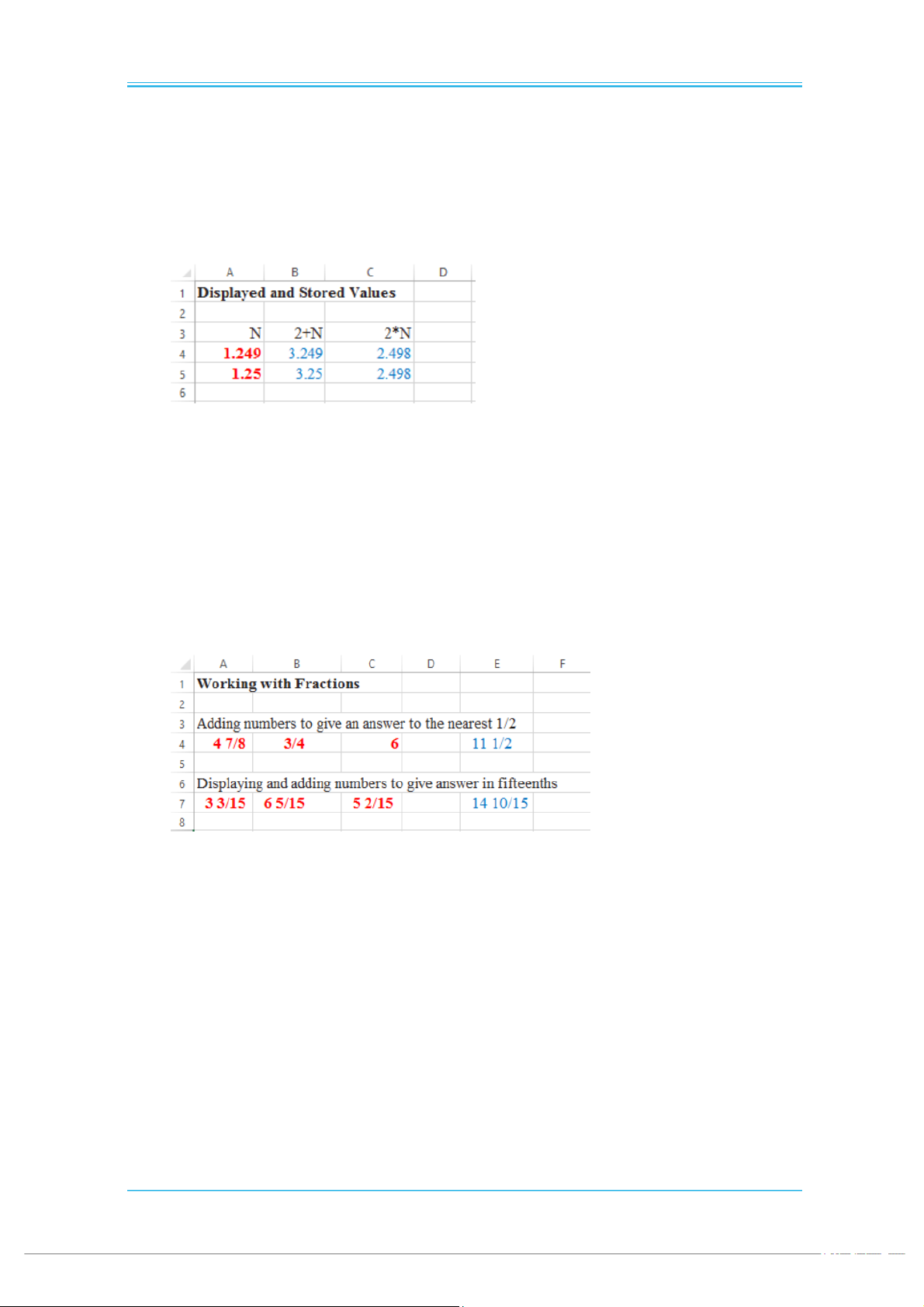
Nhập giá trị 1.249 trong ô A4 và A5 -
Định dạng ô A5 dưới dạng số có phần thập phân là 2 ký tự -
Thực hiện các phép toán như yêu cầu tiêu đề Kỹ thuật Excel
Hiểu được thế nào là Displayed value và Stored value
Exercise 4: Working with Fractions
Yêu cầu -
Nhập giá trị vào vùng A4:C4, trong ô E4 thực hiện công thức =A4+B4+C4 -
Nhập giá trị vào vùng A7:C7, copy công thức ô E4 tới E7
Kỹ thuật Excel
Thực hiện kỹ thuật định dạng phân số pg. 3 EXCEL FOR ENGINEERS
Exercise 5: Resistors in Parallel
Yêu cầu -
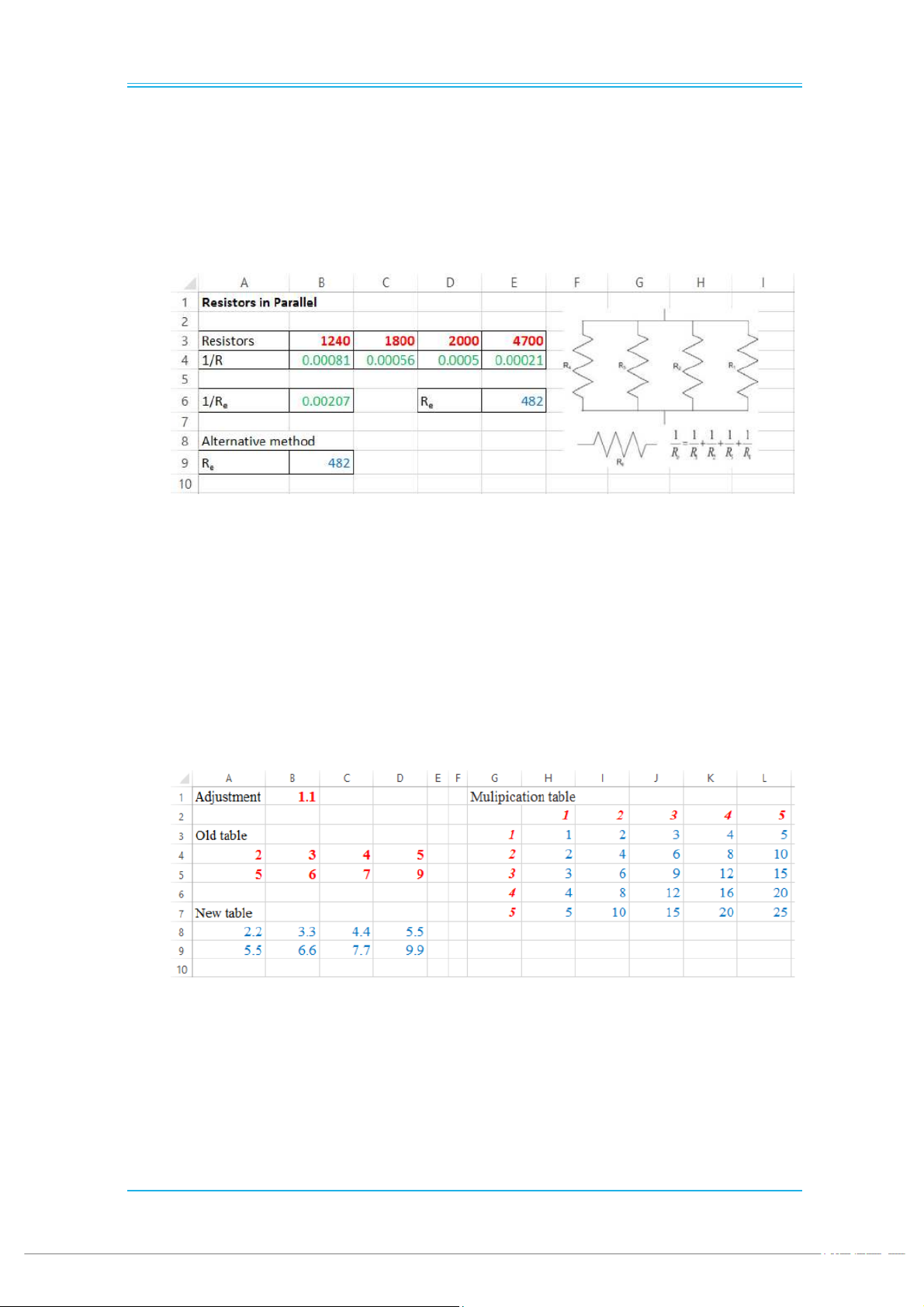
Nhập giá trị vào vùng B3:E3 -
Thực hiện các phép tính để tính giá trị điện trở của cả mạch theo công thức cho trong hình. - Thực hiện theo hai cách
Kỹ thuật Excel
Sử dụng các phép toán số học
Copying Formulas: What Happens to References?
Yêu cầu -
Nhập giá trị vùng B1, A4:D5 như trong hình minh họa -
Thực hiện phép tính các giá trị trong vùng A8:D9 nhân với giá trị ô B1 -
Thực hiện phép toán để xây dựng bảng phép nhân trong vùng H3:L7
Kỹ thuật Excel -
Sử dụng các loại địa chỉ tham chiếu để thực hiện việc copy công thức -
Hiểu cách sử dụng: Relative reference, Absolute reference, Mixed reference. pg. 4 EXCEL FOR ENGINEERS What's in a Name?
Yêu cầu -
Thực hiện ví dụ trên -
Thực hiện đặt tên cho ô B1 là Adjustment -
Thực hiện tính toán như yêu cầu bài toán trên
Kỹ thuật Excel -
Sử dụng kỹ thuật đặt tên cho ô tham chiếu -
Hiểu về phạm vi ảnh hưởng của tên (scope)
Exercise 6: Van der Waals Equation of state
Yêu cầu -
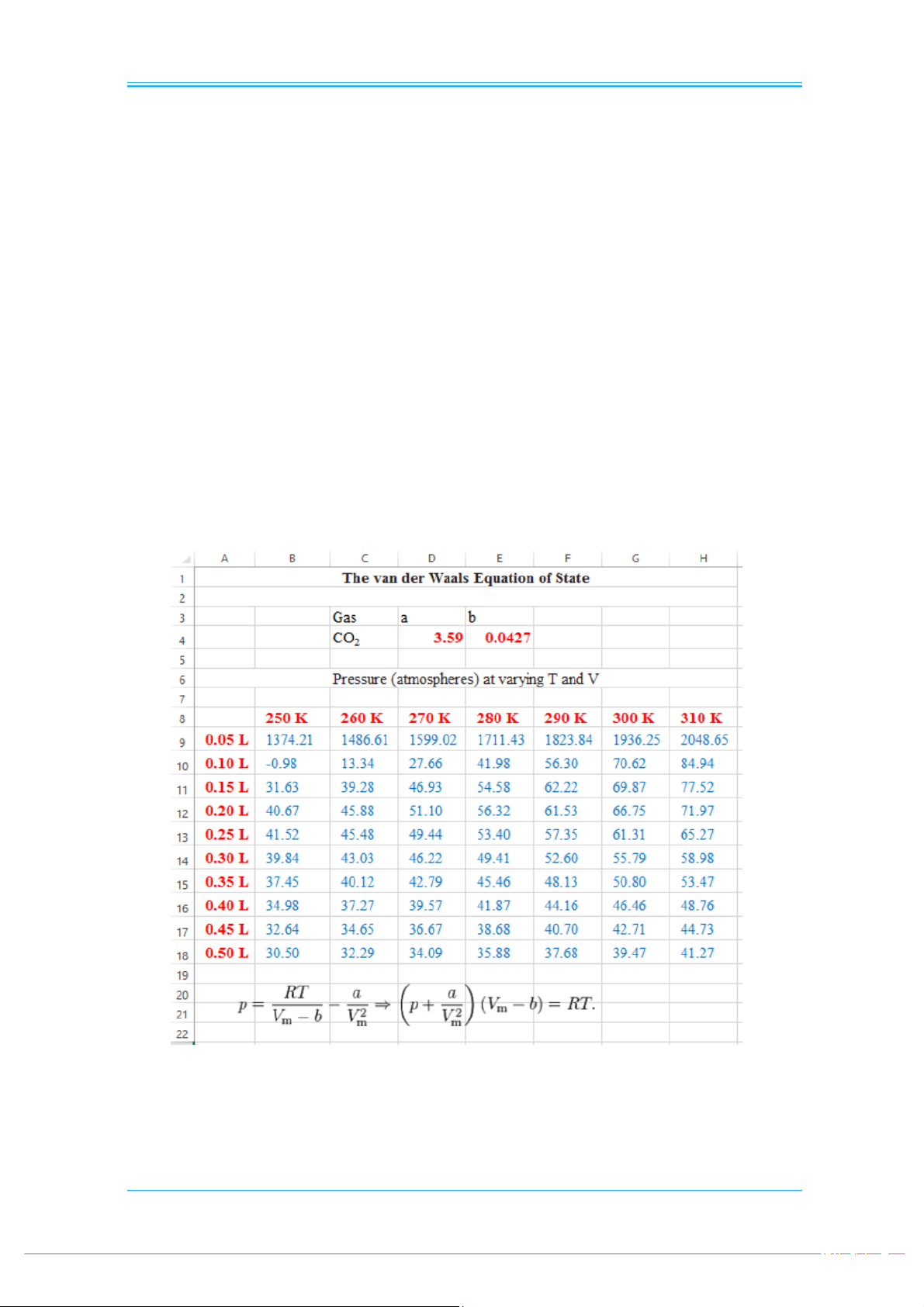
Nhập các giá trị hằng số a, b. Sử dụng kỹ thuật đặt tên cho vùng D4:E4 -
Đặt tên cho giá trị R=0.082058 -
Nhập giá trị T và Vm -
Định dạng hiển thị cho các vùng dữ liệu B8:H8, A9:A18 -
Thực hiện tính P theo công thức cho trong hình dưới
Kỹ thuật Excel -
Sử dụng kỹ thuật đặt tên cho vùng tham chiếu -
Sử dụng kỹ thuật định dạng hiển thị -
Sử dụng các phép toán số học pg. 5 EXCEL FOR ENGINEERS
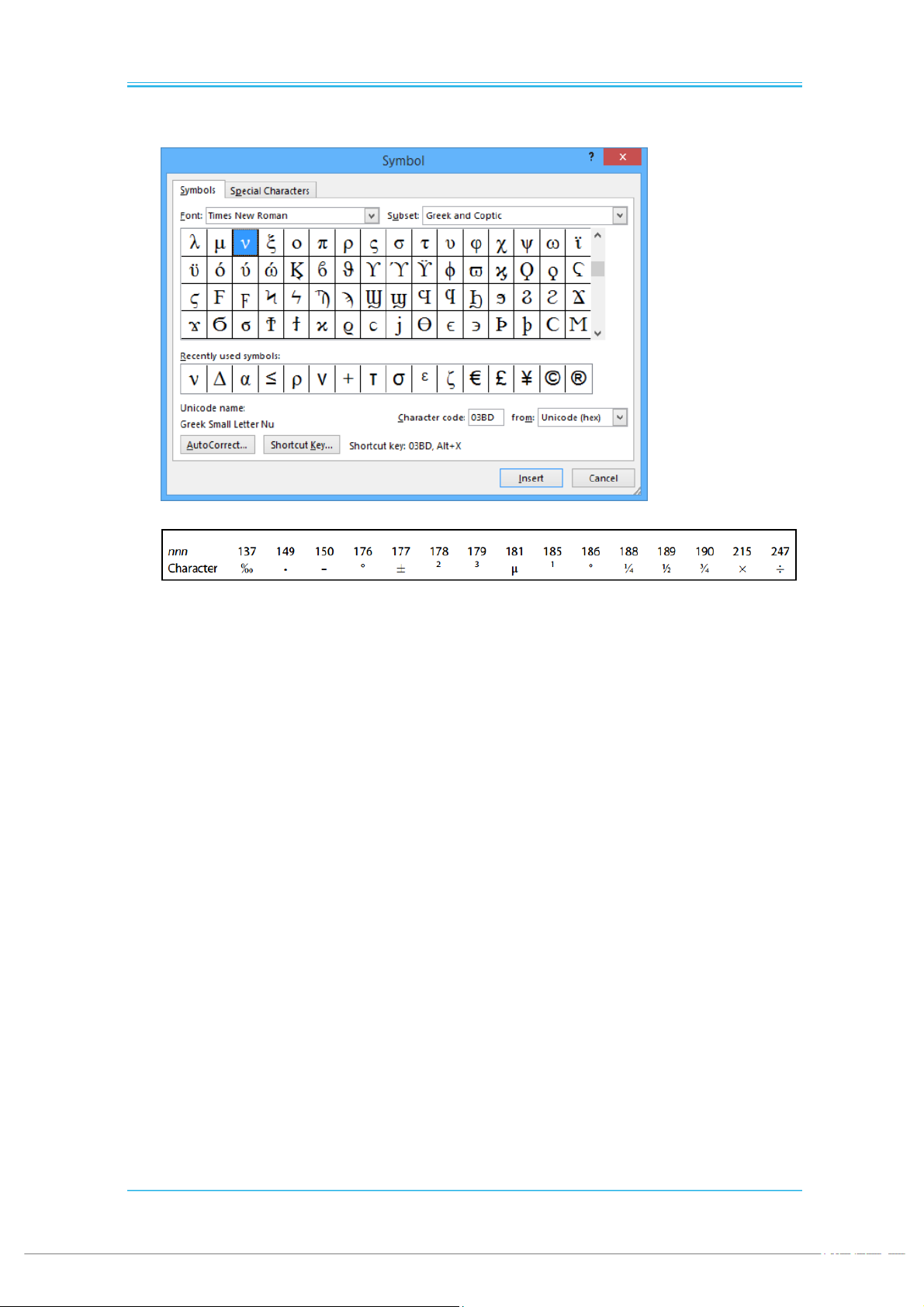
Special Symbols, Subscripts, and Superscripts pg. 6 EXCEL FOR ENGINEERS Problems 1. a.
I typed 22.90 but Excel displayed 22.9. Name or describe the tool that I
will use to see the trailing zero. b.
In cells A1:A2, I have typed 43.1, 43.2, and 1, respectively. In A4, I used the
formula =A1-A2+A3 and it displays 0.9 as expected but if I display 15
digits I see 0.899999999999999. What do we call this type of error, and why does it occur? c.
I typed 1/1/2009 in a cell; find how to make the date display as 1-Jan-09.
Experiment with Custom format to get 1-Jan-2009. d.
I typed 2/12 expecting to get a fraction, but Excel displayed 12-Feb (it
might have shown 2-Dec had I been in Europe). What did I forget to do? e.
I wish to have column headers that read °F and ft3. How do I get this
without formatting some characters as superscripts?
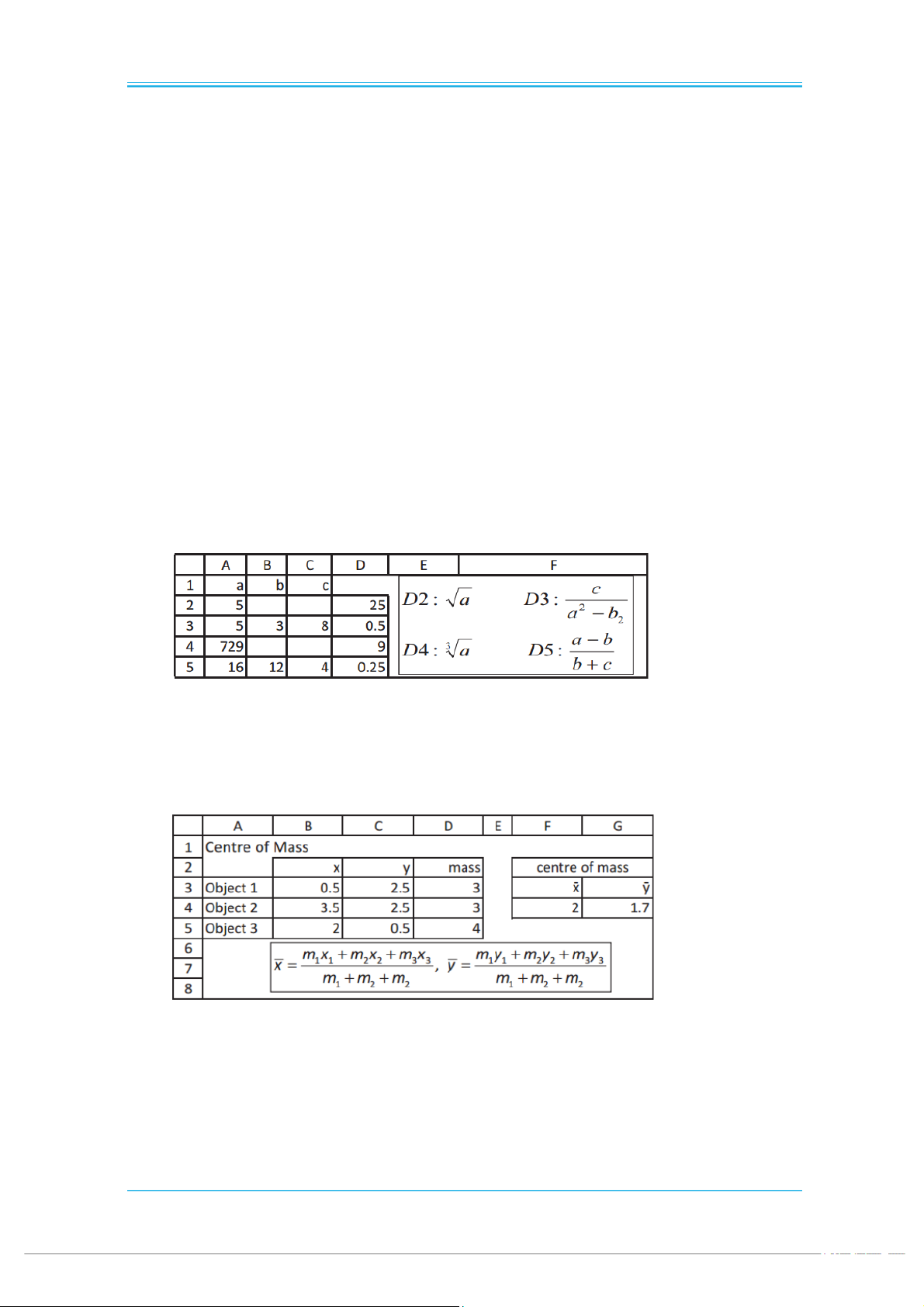
2. Referring to Figure 1.1, make a worksheet to compute the values in D2:D5
using only cell references (no named cells). Figure 1.1
3. The first table in Figure 1.2 shows the coordinates and masses of three objects.
Using the information in the displayed formulas, find the position of the center
of mass of these objects. What formulas are in F4 and G4? Figure 1.2
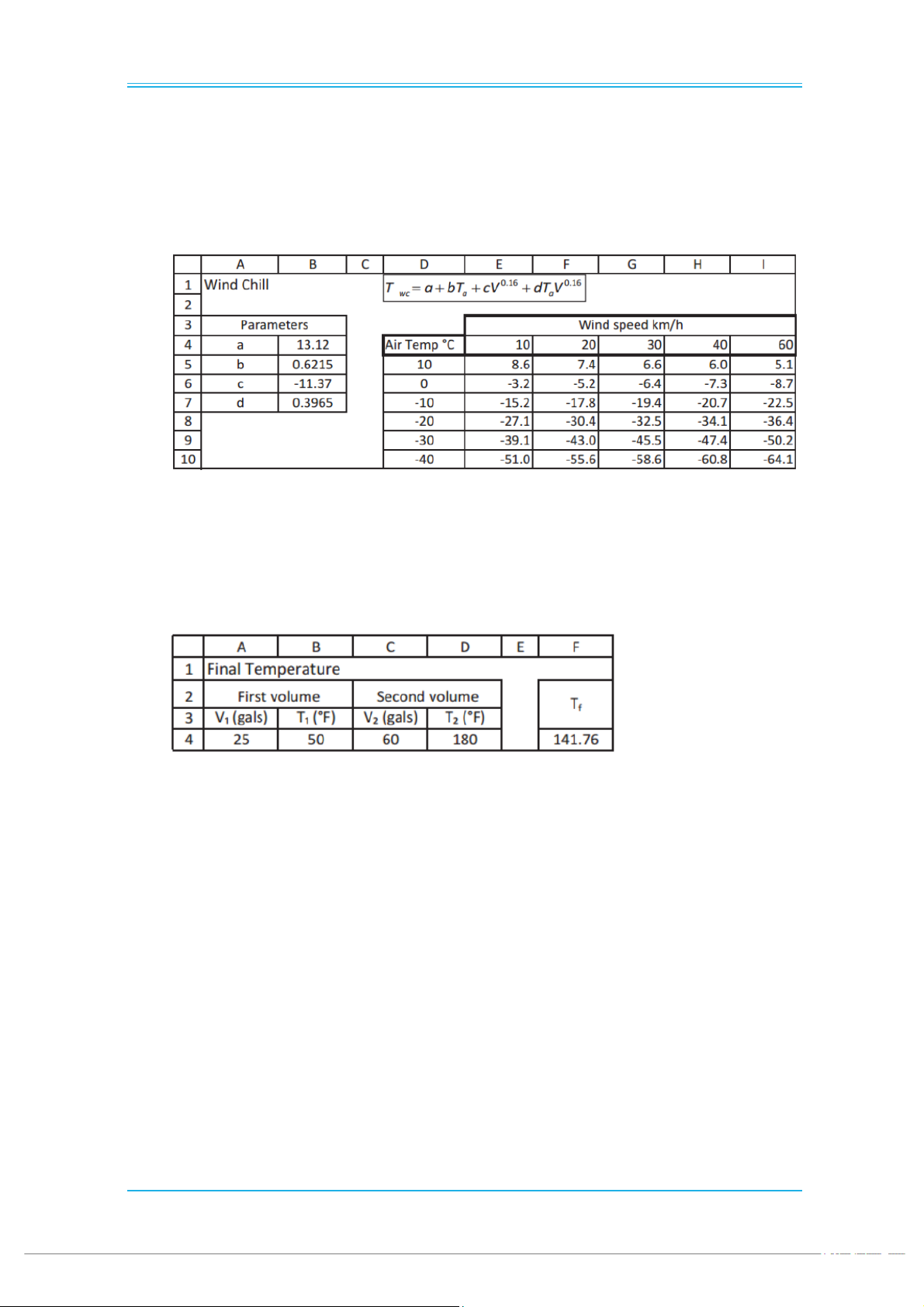
4. When a person stands in the wind, the air feels colder than when the air is still.
The apparent temperature is called the wind chill (Twc) and is computed from
the formula shown in Figure 1.3 where Ta is the air temperature. The values
shown for parameters a through d are for degrees Celsius computations. Ta is pg. 7 EXCEL FOR ENGINEERS
the air temperature and V the wind velocity. For Fahrenheit computations,
use 35.74, 0.6215, -35.75 and 0.4275 for the parameters and express V in mph.
The cells B4:B7 have been named by the letters to the right. What formula can
be used in E5 such that it can be filled down and across to make the table? Be
careful with the name for the cell B6. Can you easily modify your worksheet for Fahrenheit work? Figure 1.3
5. If a volume V1 of water at temperature T1 is mixed with another volume V2
of water at temperature T2, the resulting temperature Tf can be found using
V1(Tf –T1) +V2(Tf -T2) = 0. Construct a worksheet similar to that in Figure 1.4 to give Tf. Figure 1.4 pg. 8 EXCEL FOR ENGINEERS
Chapter 2: Using Functions Chapter contents
Exercise 1: The AutoSum Tool – công cụ tính tổng
Exercise 2: Computing a Weighted Average – Tính giá trị trung bình
Exercise 3: Trigonometry Functions – Các hàm lượng giác
Exercise 4: Exponential Functions – Hàm mũ
Exercise 5: The ROUND, ROUNDUP, and ROUNDDOWN Functions
Other Rounding Functions – Một số hàm làm tròn khác
Some Other Mathematical Functions – Các hàm toán học khác
Array Formulas – Các công thức mảng
Exercise 6: Matrix Functions – Các hàm về ma trận
Exercise 7: Solving Systems of Equations – Giải hệ phương trình pg. 9 EXCEL FOR ENGINEERS
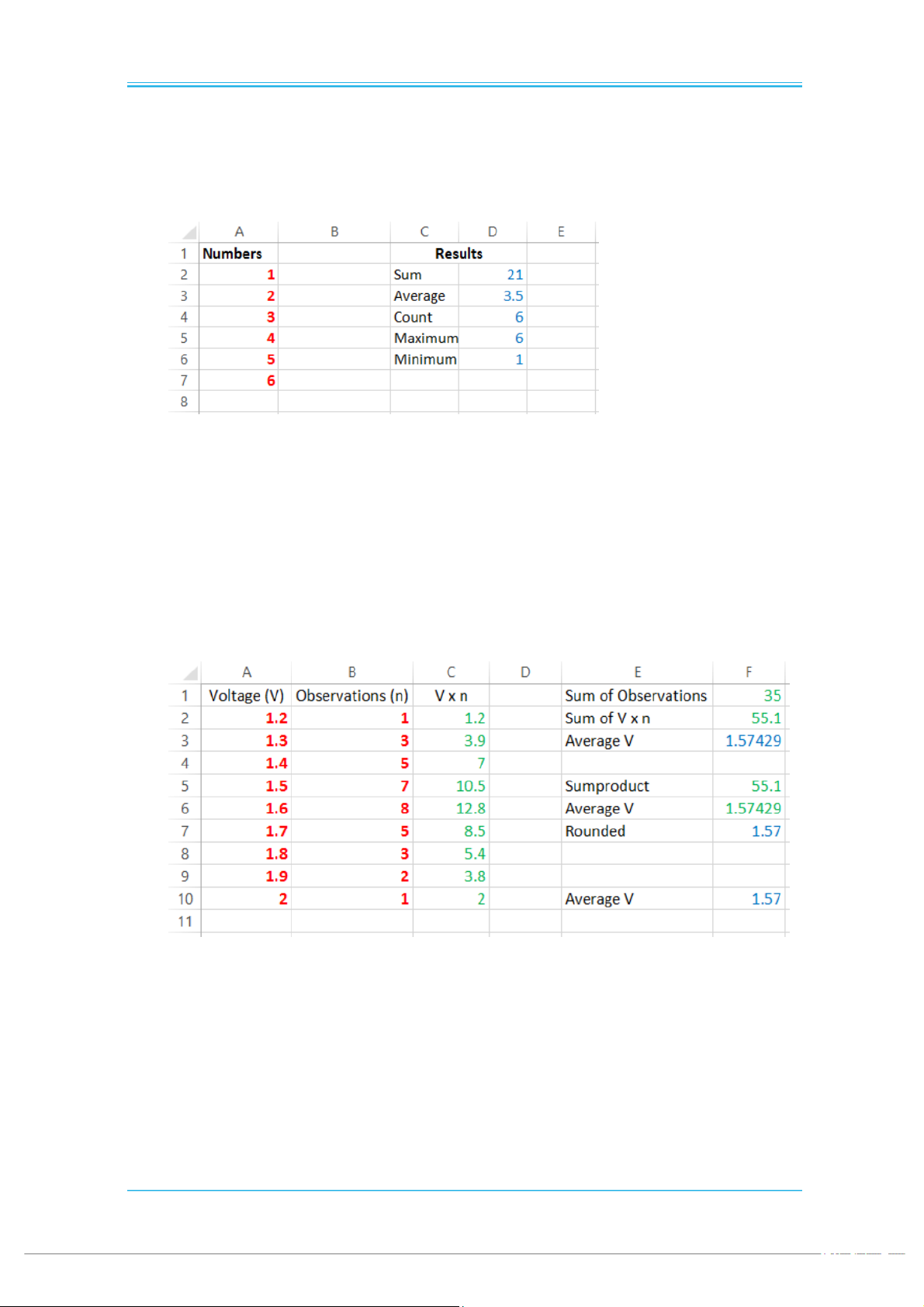
Exercise 1: The AutoSum Tool
Yêu cầu
Sử dụng thanh công cụ AutoSum để thực hiện việc tính tổng, trung bình, đếm, tìm
giá trị lớn nhất và nhỏ nhất của một dãy số.
Kỹ thuật Excel
Exercise 2: Computing a Weighted Average
Yêu cầu
Một sinh viên tiến hành đo hiệu điện thế của một quả pin trong nhiều lần và ghi
lại kết quả trong bảng cho ở cột A và B ở hình dưới. Xác định giá trị trung bình
hiệu điện thế của quả pin theo 3 cách.
Kỹ thuật Excel - Sử dụng hàm Sum - Sử dụng hàm Sumproduct - Sử dụng hàm Round pg. 10 EXCEL FOR ENGINEERS
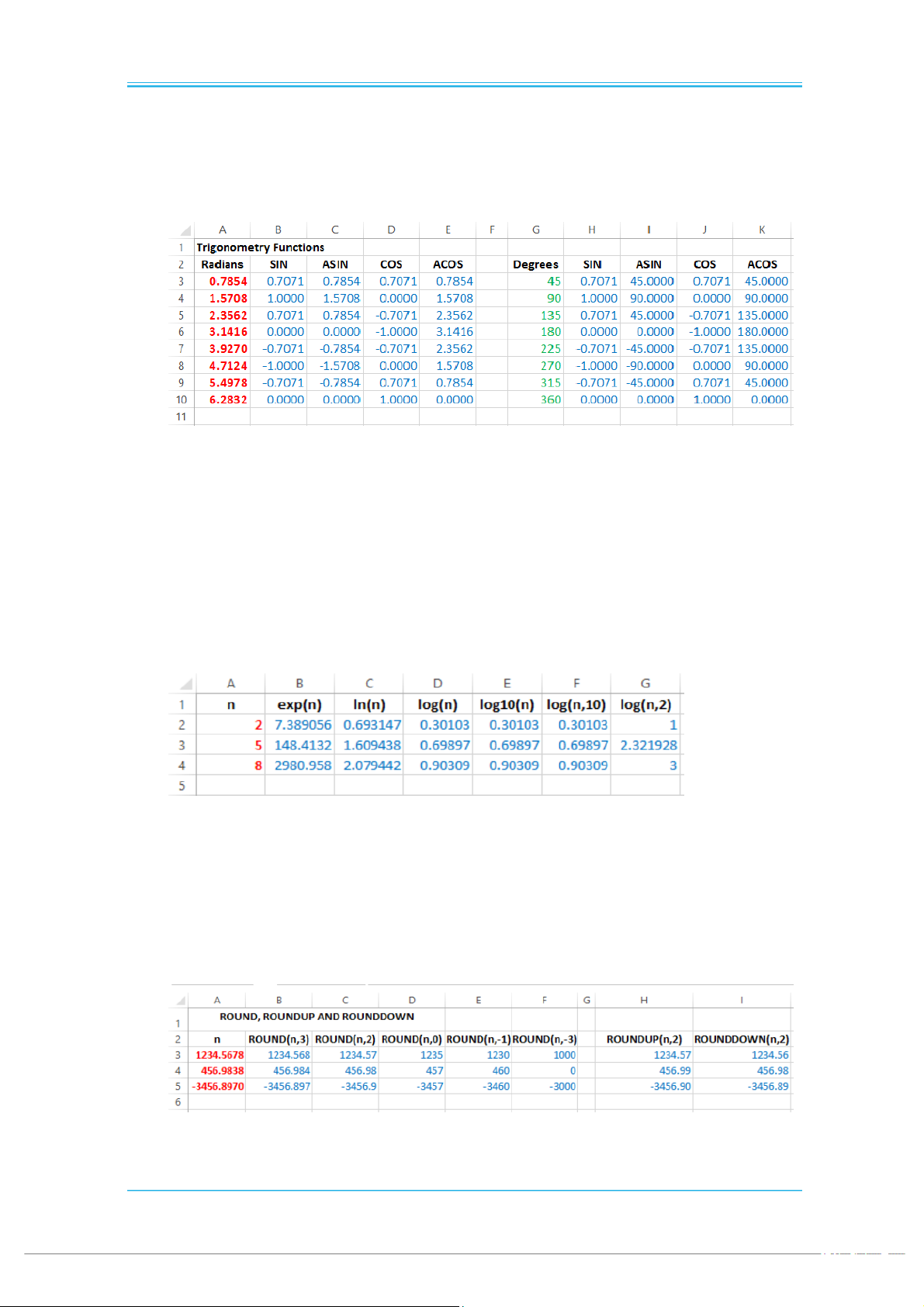
Exercise 3: Trigonometry Functions
Yêu cầu -
Nhập giá trị góc lượng giác sai khác pi/4 ở trong vùng A3:A10 -
Tính toán các giá trị lượng giác theo góc đã cho
Kỹ thuật Excel -
Nhập liệu cho một chuỗi số -
Sử dụng hàm lượng giác chuyển đổi gữa góc đo theo degrees và radians -
Sử dụng các hàm lượng giác
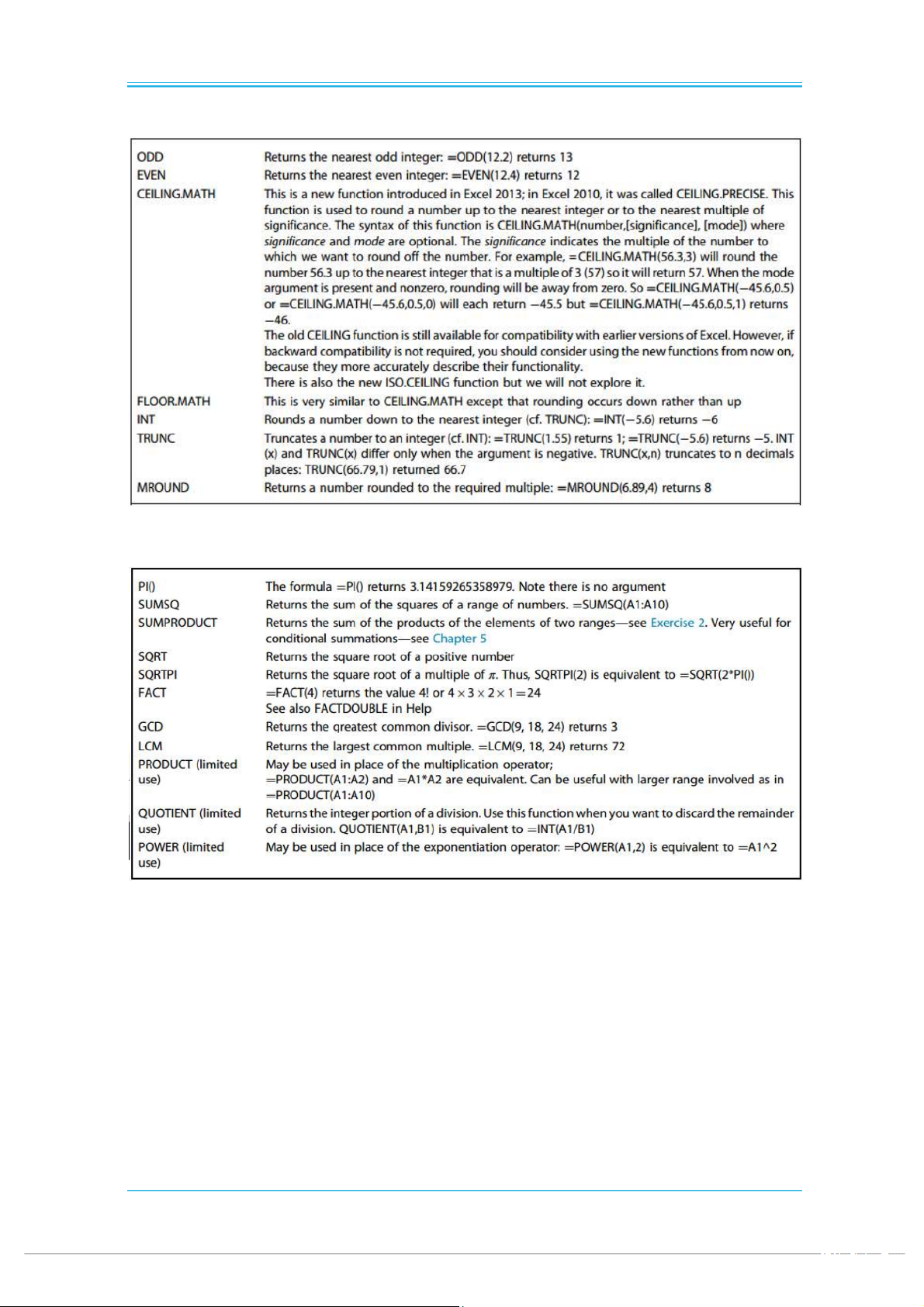
Exercise 4: Exponential Functions
Yêu cầu -
Nhập giá trị n trong vùng A2:A4 -
Thực hiện các phép tính trong vùng B2:G4
Kỹ thuật Excel -
Sử dụng các hàm số mũ
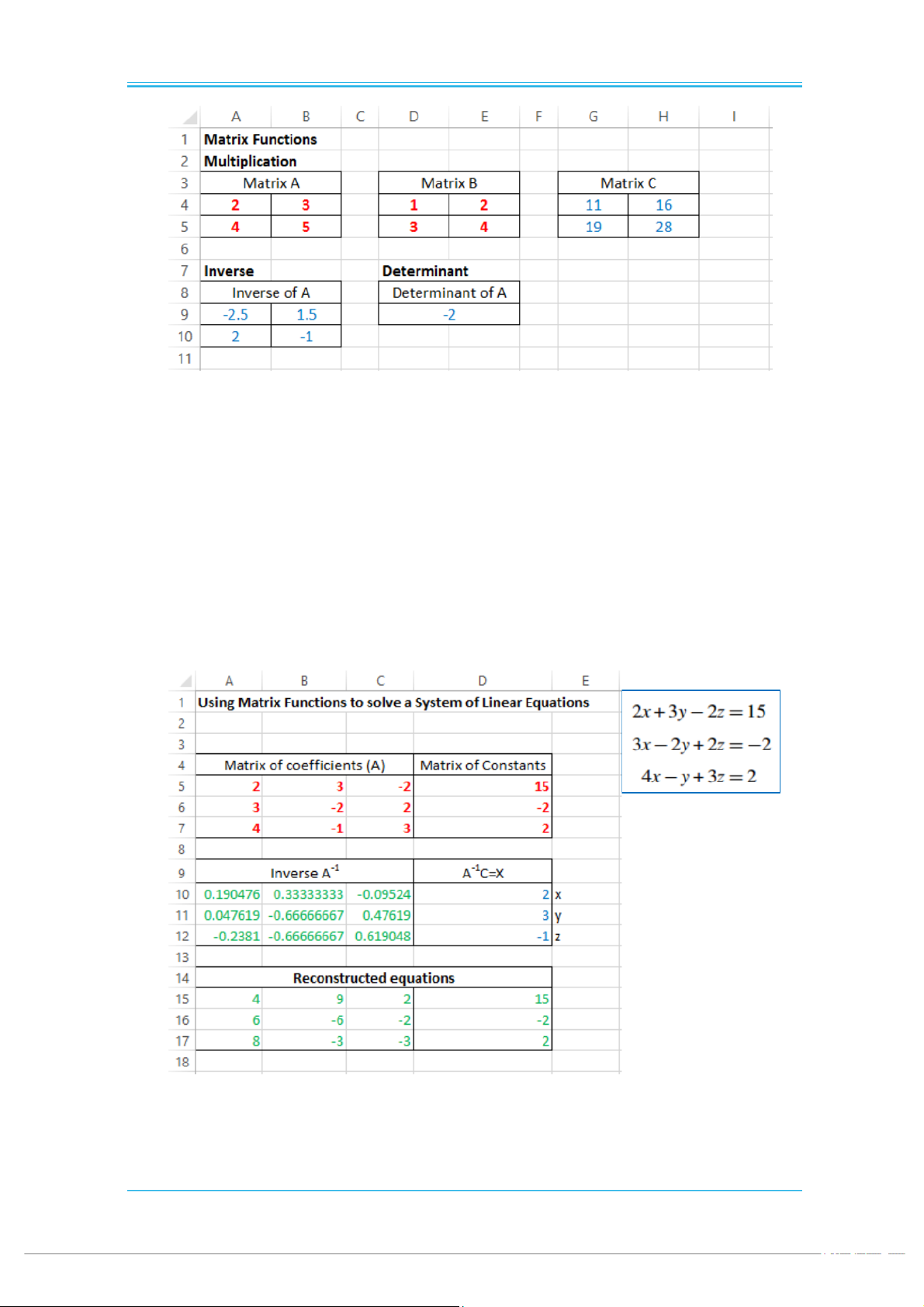
Exercise 5: The ROUND, ROUNDUP, and ROUNDDOWN Functions
Yêu cầu -
Nhập giá trị n trong vùng A3:A5 -
Thực hiện phép toán làm tròn như trong hình
Kỹ thuật Excel -
Sử dụng các hàm làm tròn với các đối số khác nhau pg. 11 EXCEL FOR ENGINEERS
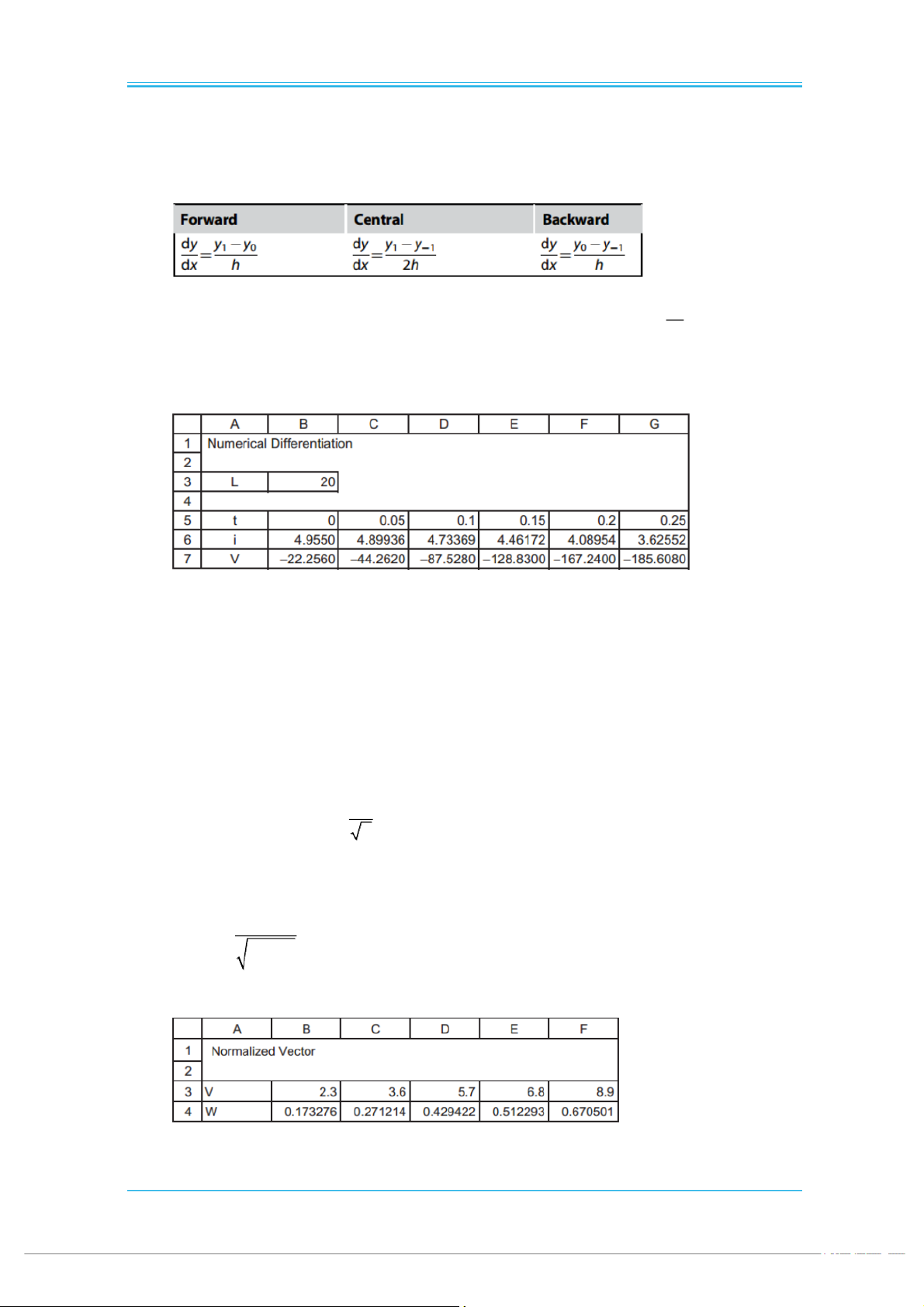
Other Rounding Functions
Some Other Mathematical Functions Array Formulas
Exercise 6: Matrix Functions
Yêu cầu -
Nhập vào giá trị của ma trận A và B -
Xác định giá trị ma trận C=A*B -
Xác định ma trận nghịch đảo của ma trận A -
Xác định định thức của ma trận A pg. 12 EXCEL FOR ENGINEERS
Kỹ thuật Excel - Sử dụng hàm MMULT - Sử dụng hàm MINVERSE - Sử dụng hàm MDETERM
Exercise 7: Solving Systems of Equations
Yêu cầu -
Nhập các hệ số của hệ phương trình trong vùng A5:D7 -
Xác định nghiệm của hệ phương trình -
Kiểm tra lại nghiệm xác định có thoản mãn phương trình không
Kỹ thuật Excel -
Sử dụng các hàm liên quan đến ma trận để giải bài toán pg. 13 EXCEL FOR ENGINEERS Problems
1. Numerical differentiation on tabulated data may be done using one of the formulas shown in the below table
The voltage drop (V) across an inductance (L) is given by di
V L dt In Figure 2.1,
the central difference formula is used for interior points and the forward and
backward formulas for end points. What are the Excel formulas in B7:G7? Figure 2.1
2. To measure the index of refraction μ of a liquid with an Abbe refractometer, a drop
is placed between two prisms and a mirror is rotated until the boundary of the light
and dark zones align with the crosshairs in a microscope. The index of refraction
of the liquid is given by the following equation in which the angle of rotation is θ
and μg is the refractive index of glass (1.51). For liquid A, the value of θ was found
to be 150°, and for B, it was 75°. Using a worksheet, find μ for each liquid: 1 / 2 2 1 2 μ [(μ sin θ )θ sin ] g 2
3. Many engineering applications requirenormalizingann-element vector. If the
original vector isVand the normalized one is W, then the elements of Ware given by w v i
. What formula would you use in B4 of Figure 2.2 such that it can in 2 v 1 i
be copied by dragging to column F? Figure 2.2 pg. 14 EXCEL FOR ENGINEERS
4. To fitnordered pairs of data to the equation y=mx+c, we can use the formulas:
To fit the data in A3:G4 of Figure 2.3, what formulas would you use in B6:B10
and E7:E8? we will use the SLOPE and INTERCEPT functions to get the same result in a simpler manner. Figure 2.3
5. A trough of length L has a semicircular cross section with radius r. When filled
with water to within a distance h of the rim, the volume V is given by
Our task is to make the worksheet shown in Figure 2.3. Typing a long formula is
error-prone, so we do it stepwise. What are the formulas in E3:E6? Excel has a
CONVERT function, what formula can be used in E7 to display the volume in
either US or Imperial gallons? Figure 2.3 pg. 15 EXCEL FOR ENGINEERS
6. Electrical engineers use a color-coded system to identify the value of a resistor.
Thus, a resistor with the banding colors green, blue, yellow, and gold has a value
of 560 kΩ±5%. Construct a worksheet similar to Figure 2.4. The user enters the
digit 1 next to the appropriate color for each band and the resistance is computed
in C19 with the help of table G3:I13. The multiplier is 10 raised to the power in
column A. Check your results on the Internet. Cell C19 as the custom format
[<0.001]##0E+0;[<1000]#0.00;##0E+0, which gives exponents in multiples of
three. We shall expand on this problem in later chapters. Clearly, we really should
arrange things so that there is only a single 1 in each of theBarcolumns. Figure 2.4
7. Create a worksheet to solve the following system of equations using matrix algebra: pg. 16 EXCEL FOR ENGINEERS
Chapter 3: Conditional Functions Chapter contents Logical Comparison Operators Exercise 1: Boolean Functions Exercise 2: Practical Example The IF Function Nested Ifs
IF Formulas with Boolean Functions The IFERROR Function
Exercise 3: Resistors Revisited
Exercise 4: Quadratic Equation Solver Table Lookup Functions Exercise 6: A Simple Lookup
Exercise 7: A Two-Valued Lookup
Exercise 8: Conditional Arithmetic Exercise 9: Array Formulas
Exercise 10: The SUMPRODUCT Function
Exercise 11: Conditional Formatting pg. 17 EXCEL FOR ENGINEERS
Logical Comparison Operators -
Các toán tử so sánh Comparison operator Meaning Example = (equal sign) Equal to A1=B1 > (greater than sign) Greater than A1>B1 < (less than sign) Less than
A1>= (greater than or equal to sign) Greater than or equal to A1>=B1
<= (less than or equal to sign) Less than or equal to A1<=B1 <> (not equal to sign) Not equal to A1<>B1 - Biểu thức logic
(Expression 1) Logical Operator (Expression 2)
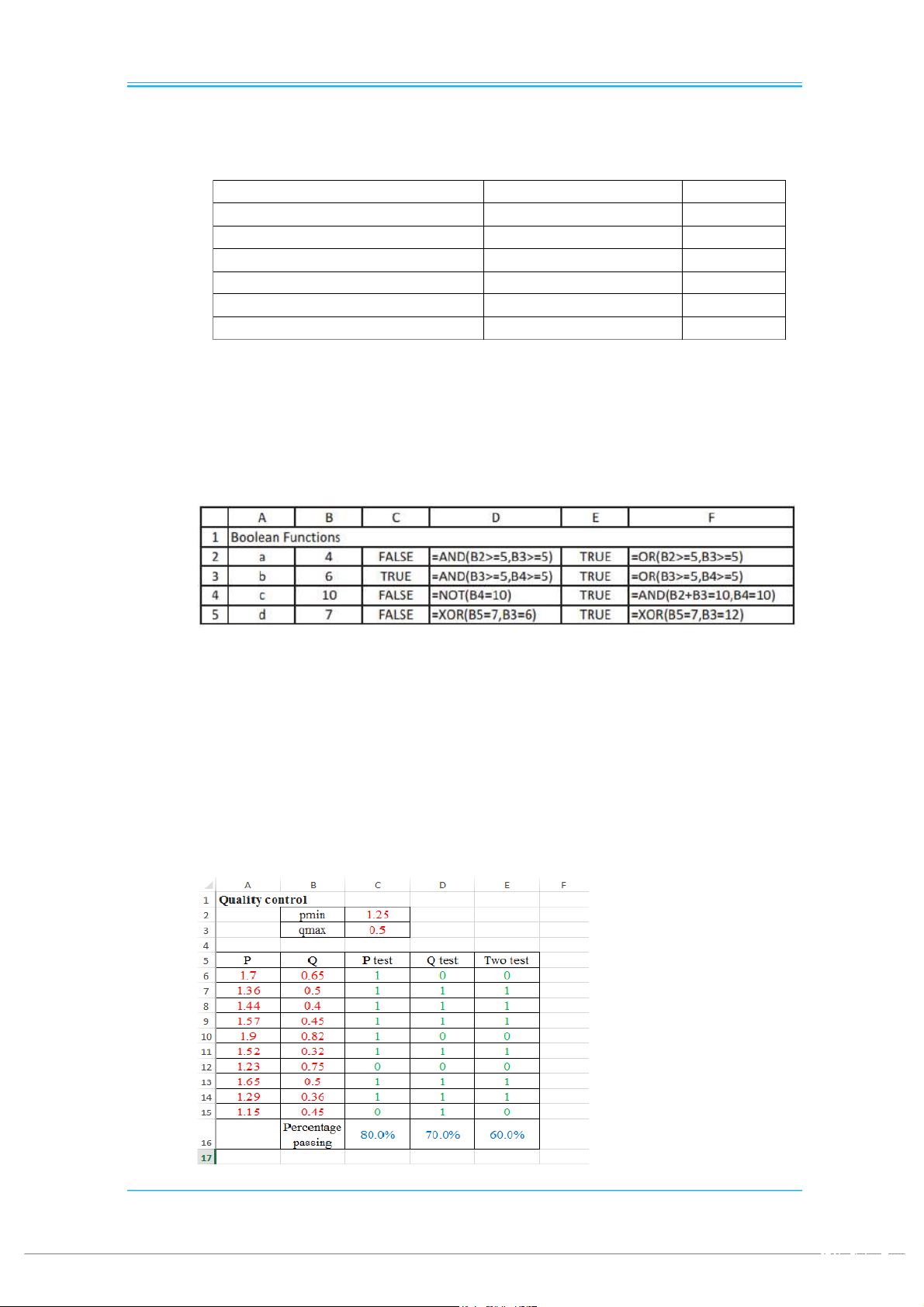
Exercise 1: Boolean Functions Vấn đề -
Sử dụng Boolean Functions để thực hiện các mệnh đề quan hệ sau
Kỹ thuật Excel -
Sử dụng các hàm các toán tử so sánh (Comparisons operators) -
Sử dụng các hàm mện đề quan hệ (Boolean functions)
Exercise 2: Practical Example Vấn đề -
Trong một công trường, có 10 mẫu thí nghiệm cần phải kiểm tra. Mỗi mẫu có
hai thông số cần kiểm tra là P và Q. Giá trị P cần phải lớn hơn giá trị pmin và giá
trị Q cần phải nhỏ hơn giá trị qmax. Xác định số lượng các mẫu đạt yêu cầu. pg. 18 EXCEL FOR ENGINEERS
Kỹ thuật Excel -
Sử dụng kỹ thuật đặt tên -
Sử dụng các toán tử so sánh và hàm mệnh đề quan hệ The IF Function Syntax -
IF(logical_test, value_if_true, [value_if_false]) Example
=IF(A1>=10, “OK”, “Too small”)
=IF(A1=0, “Zero”, “Not zero”)
=IF(A1, “Not Zero”, “Zero”)
=IF(A2<0, “Negative”, “Positive”)
=IF(ABS(A1-B10)<=EPSILON, “Equal”, “Unequal”)
=IF(ABS(A10-B10)<=0.001, 1, 0) or =--(A10-B10<=0.001)
=IF(SUM(A12:A20)>0, SUM(A12:A20), “Error”)
=IF(A1<>0, TRUE, FALSE) or =IF(A1, TRUE, FALSE) or =A1<>0
=IF(B5<>0, A5/B5, “”) or =IF(B5<>0, A5/B5, NA()) Nested Ifs
=IF(A1>10, IF(A1>50, “Big”, “Medium”), “Small”)
=IF(A1>10, IF(A1>50, “Big”, “Medium”), IF(A1<0, “Negative”, “Small”))
IF Formulas with Boolean Functions
=IF(AND(A2>0, A2<11), A2, NA())
= IF(OR(A2>0, B2>A2/2), 3, 6) = IF(NOT(A2=0), TRUE, FALSE)
= IF(NOT(OR(A1=1, A2=1)), 1, 0) The IFERROR Function Syntax
IFERROR(value, value_if_error) pg. 19